Apple Travel -
MVP Concept
A concept MVP exploring how Apple could design a system-first travel experience.
Product Design
travel
iOS App Design
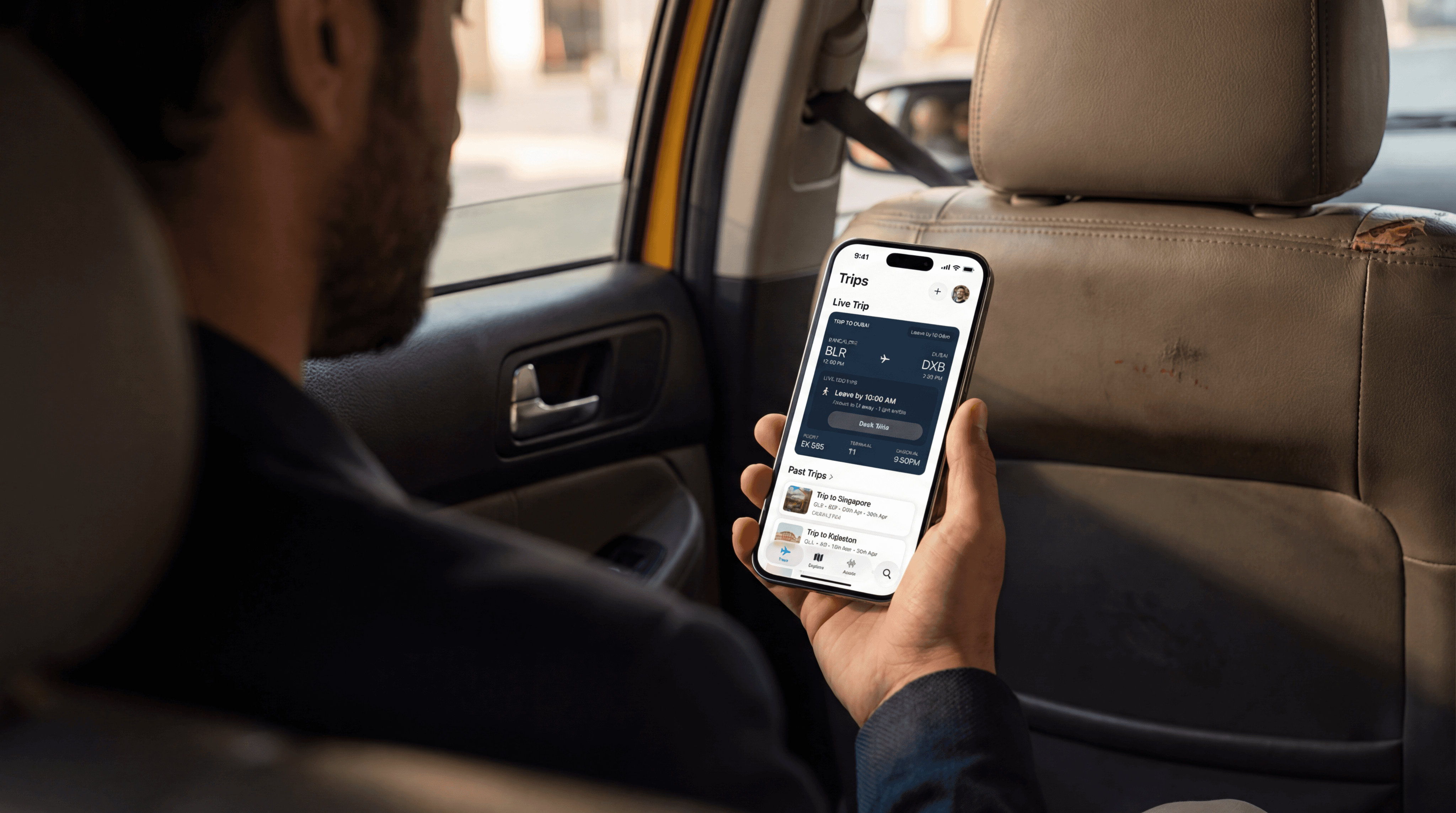
“Imagine travel that feels thoughtfully guided — before your trip begins, while you’re moving, and once the journey is complete — all in Apple’s native style.”
SKIP TO FINAL DESIGN
Role
Product Designer
DURATION
Sep 2025 – Jan 2026
(Designed iteratively over weekends)
Focus Areas
Product thinking & system design
State-Driven UX
Apple-Native Patterns
System vs User Ownership
Edge Case Handling
MVP Discipline

The
Origin
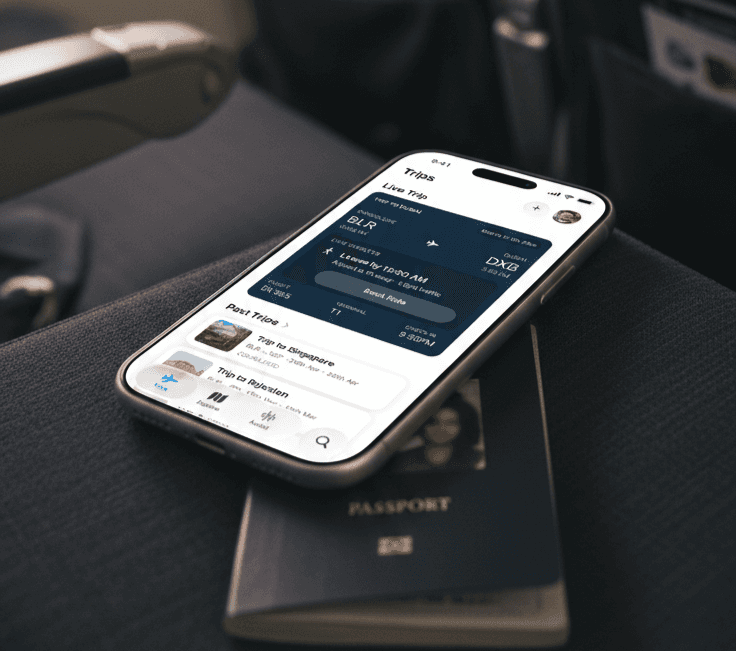
During my recent trips to different places, I often relied on Apple Wallet to access boarding passes at various points in the journey.
In multiple situations, the information I needed — gate details, boarding status, or last-minute updates — wasn’t always surfaced clearly, or required switching between apps to make sense of what was happening. That friction became especially noticeable while moving through airports or dealing with unexpected changes.
It raised a simple question: what if this experience could be more than a static pass? What if there were an Apple-style travel experience designed to actively guide travelers through a trip — especially those who travel infrequently — rather than just store information?
Patterns
I Noticed
That initial friction didn’t feel isolated. To understand whether this was a broader pattern, I looked through how travelers talk about planning and live travel experiences—especially around Apple Wallet and real-time updates.
Across forum posts and user discussions, a consistent theme emerged: while planning is often manageable, live travel is where things break down. Seat changes, gate updates, delays, and connectivity issues push travelers into a state where clarity matters more than features.
Conversations around Apple Wallet highlighted a recurring gap. Boarding passes often failed to update reliably, disappeared from the lock screen after changes, or became buried among older passes at critical moments. Even with automatic updates enabled, many users reported falling back to airline apps to regain confidence.
What stood out was that these weren’t isolated complaints. There were many similar experiences shared by different users over time, all pointing to the same issue—Wallet works well as a container, but struggles as a live travel guide.
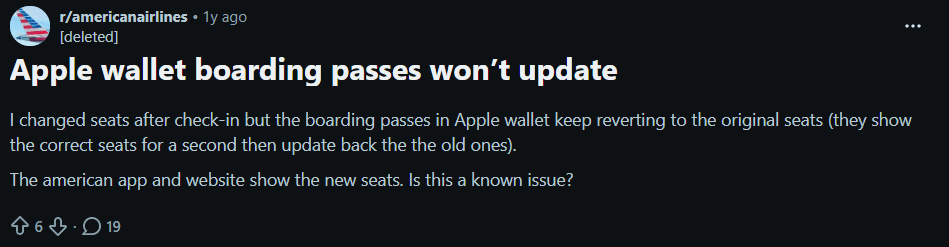
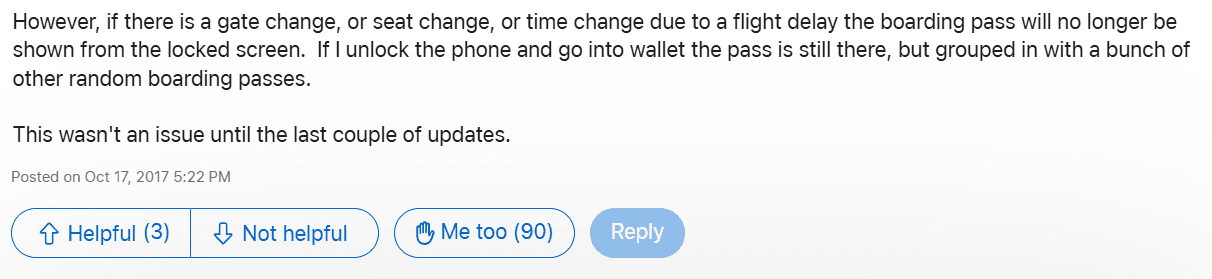
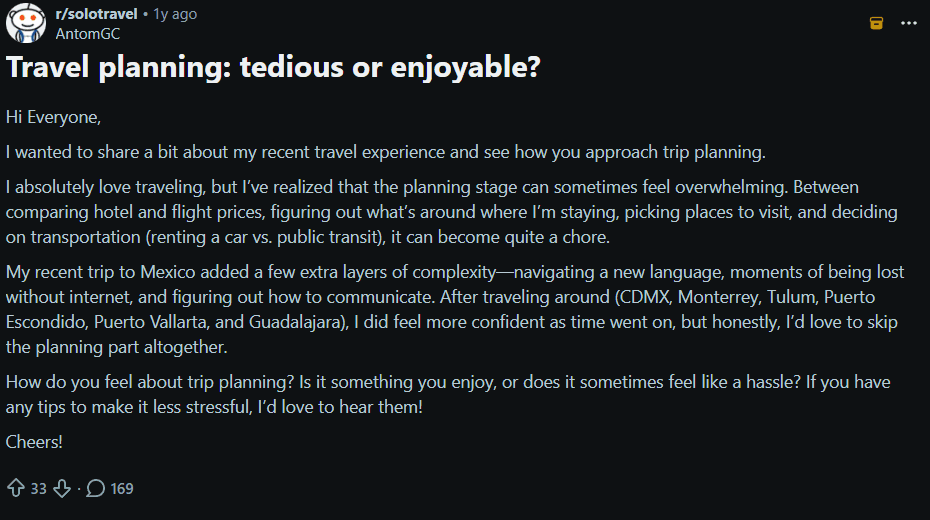
Public user feedback pointing to reliability issues during live travel moments.
From this, a few clear insights surfaced:
Planning and live travel are different mental states
Static passes don’t hold up when things change
Notifications can inform, but don’t provide orientation
Trust comes from acknowledging uncertainty in real time
These insights reinforced the need for a system that adapts to where the traveler is in their journey.
Ideation &
Process
As I explored the problem further, it became clear that Apple Wallet and a travel experience serve very different purposes — even though they often intersect during a trip. Wallet works well as a place to store passes, tickets, and credentials. But travel itself is not static. It unfolds over time, across locations, and under changing conditions.
This distinction became an important line early on. Rather than extending Wallet or adding more intelligence to passes, I treated travel as its own experience — one that needed to understand context, progression, and uncertainty. Apple Travel wasn’t meant to replace airline apps or Wallet, but to sit above them as a system that understands where the traveler is and what they need in that moment.
To explore this, I began mapping out real travel scenarios — planning at home, navigating an airport, waiting at a gate, reacting to delays, and reflecting after a trip. Each scenario revealed a different user mindset, and highlighted how a single interface trying to handle everything would inevitably become cluttered or unreliable.
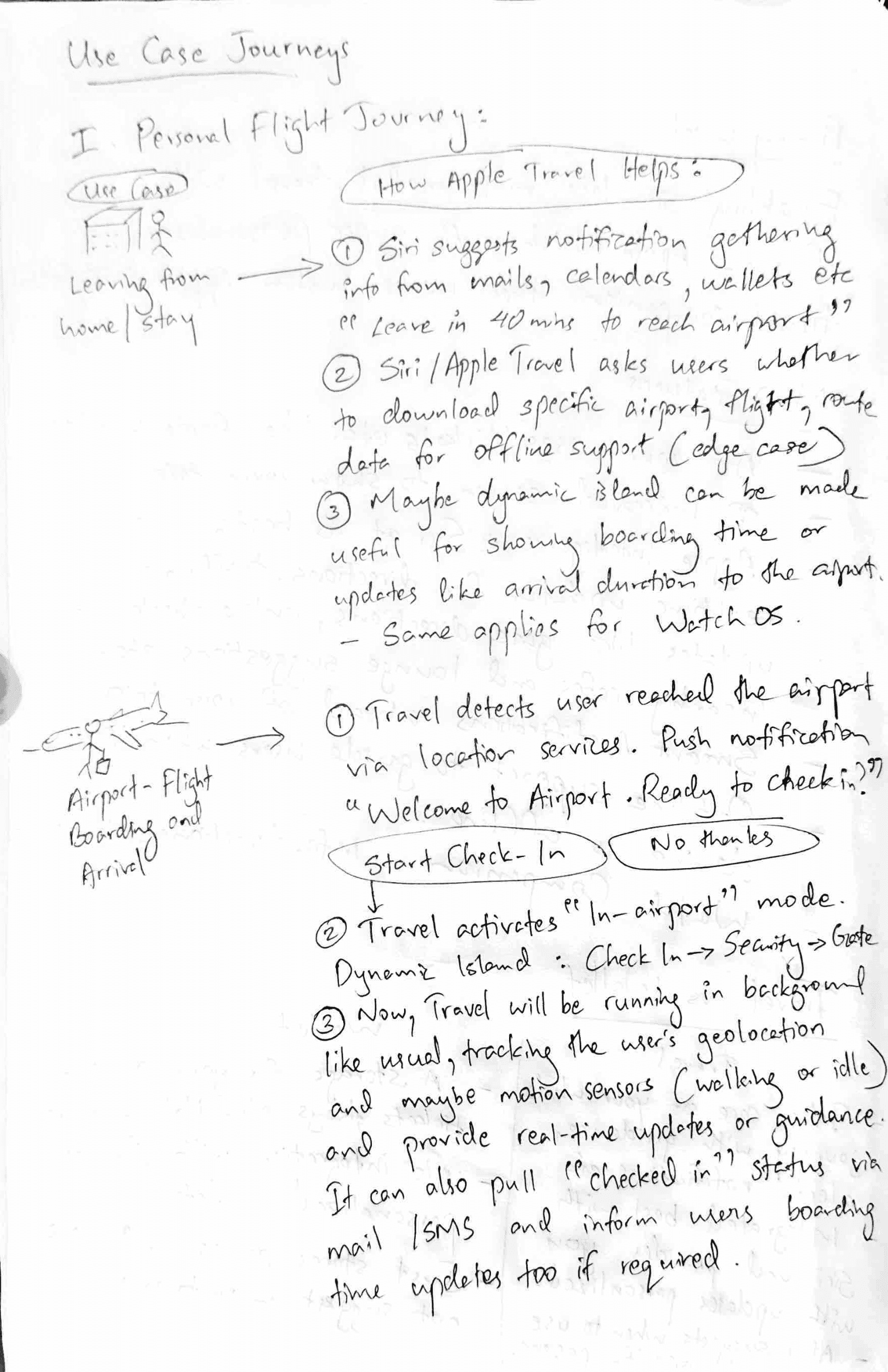
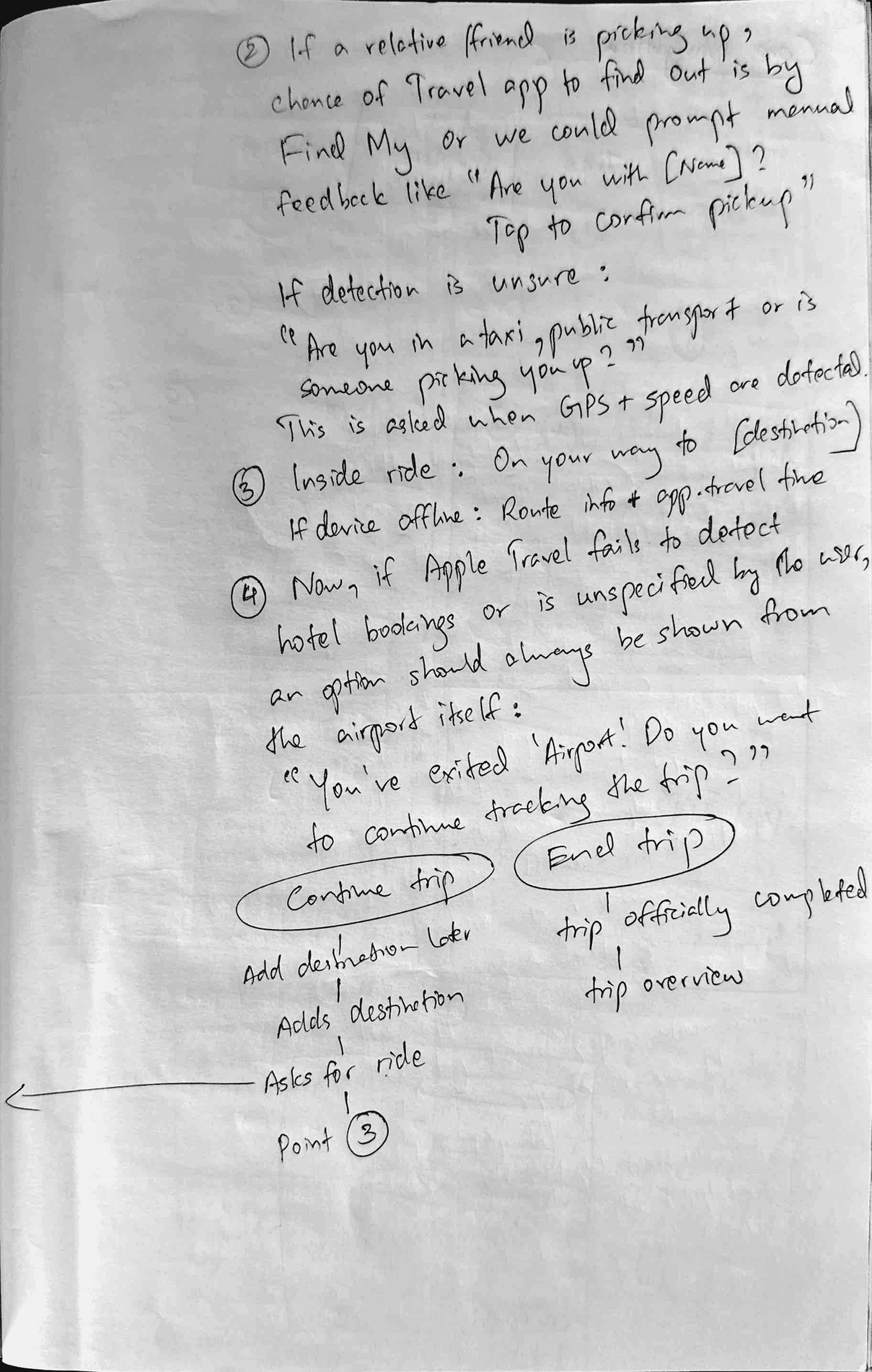
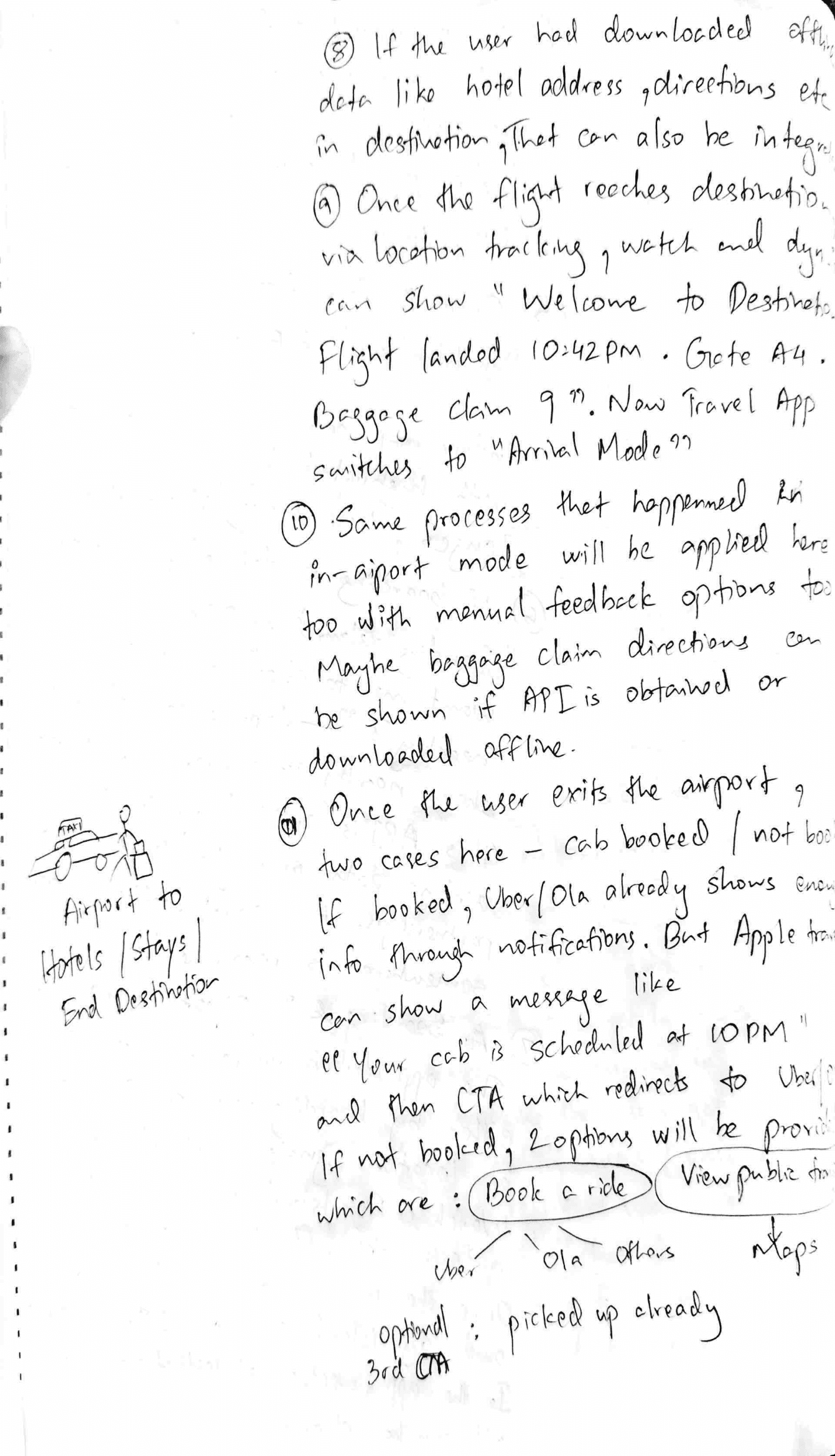
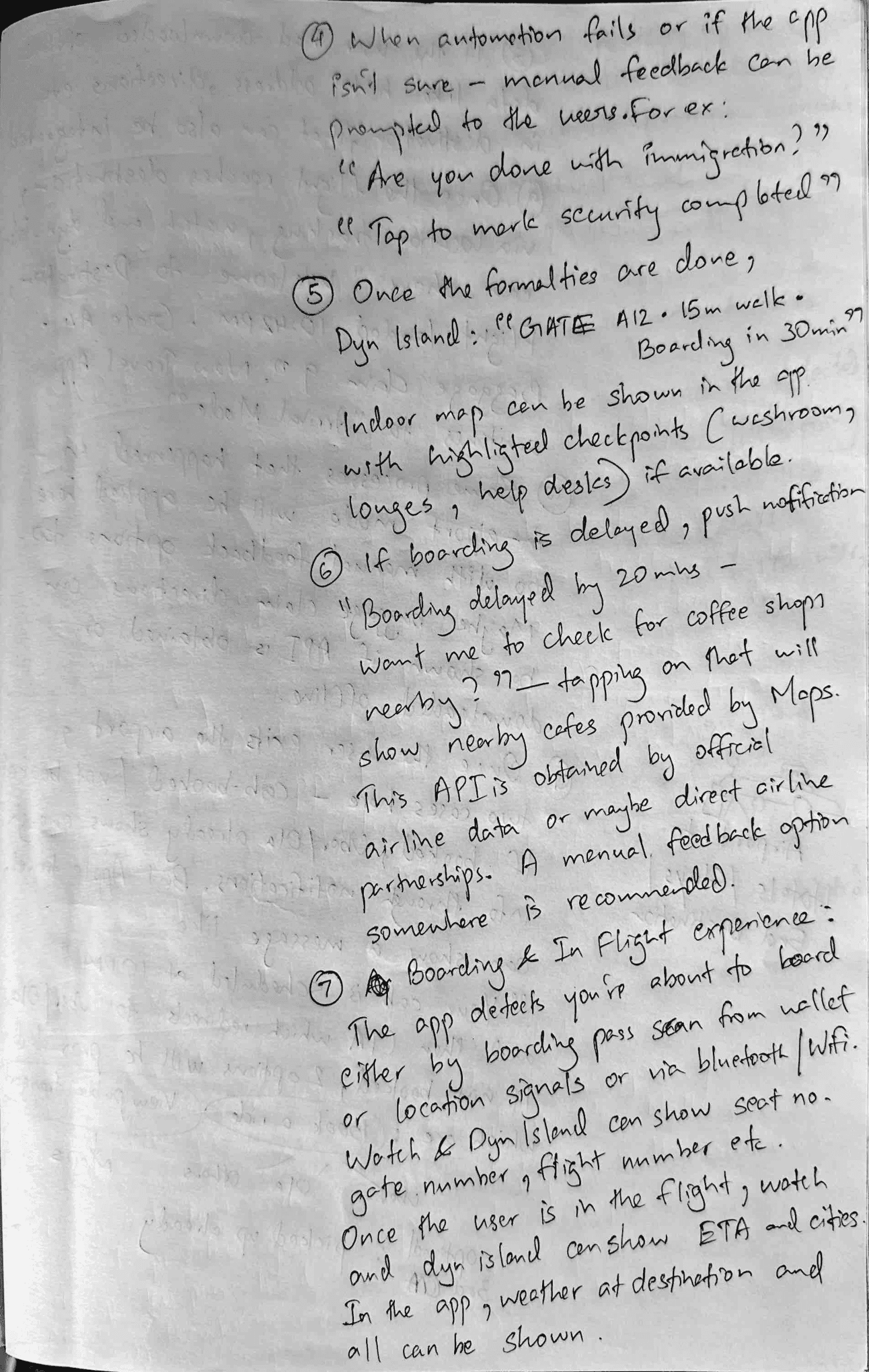
Working notes used to explore travel scenarios and system behavior.
At this point in the process, a few guiding questions helped anchor decisions and prevent feature creep:
What should the traveler be doing right now — planning, moving, waiting, or adjusting?
When should the system guide the user, and when should it simply stay out of the way?
How can the interface change its behavior as the journey progresses, not just its content?
These questions shaped how Apple Travel was structured. Instead of designing flows screen by screen, the focus shifted to defining modes — setup, live travel, editing, and completion — each with clear intent, permissions, and limitations.
By grounding decisions in real scenarios rather than hypothetical features, the system naturally began to prioritize clarity over control. This made it easier to decide what belonged in a live surface, what should remain editable, and what should disappear entirely once a trip was in motion.
Giving the Idea
Structure
With the direction established, the next step was to define the system at a structural level. Before thinking about screens, the focus was on how the experience should be organized, what modes it should contain, and how users would move between them.
Travel was structured into distinct modes—setup, live travel, editing, and completion—each with a clear purpose and limited responsibilities. This separation helped prevent overlap and ensured that actions available in one mode didn’t interfere with another.
The information architecture was designed to surface only what was relevant to the current moment, allowing the system to feel predictable even as the journey changed.
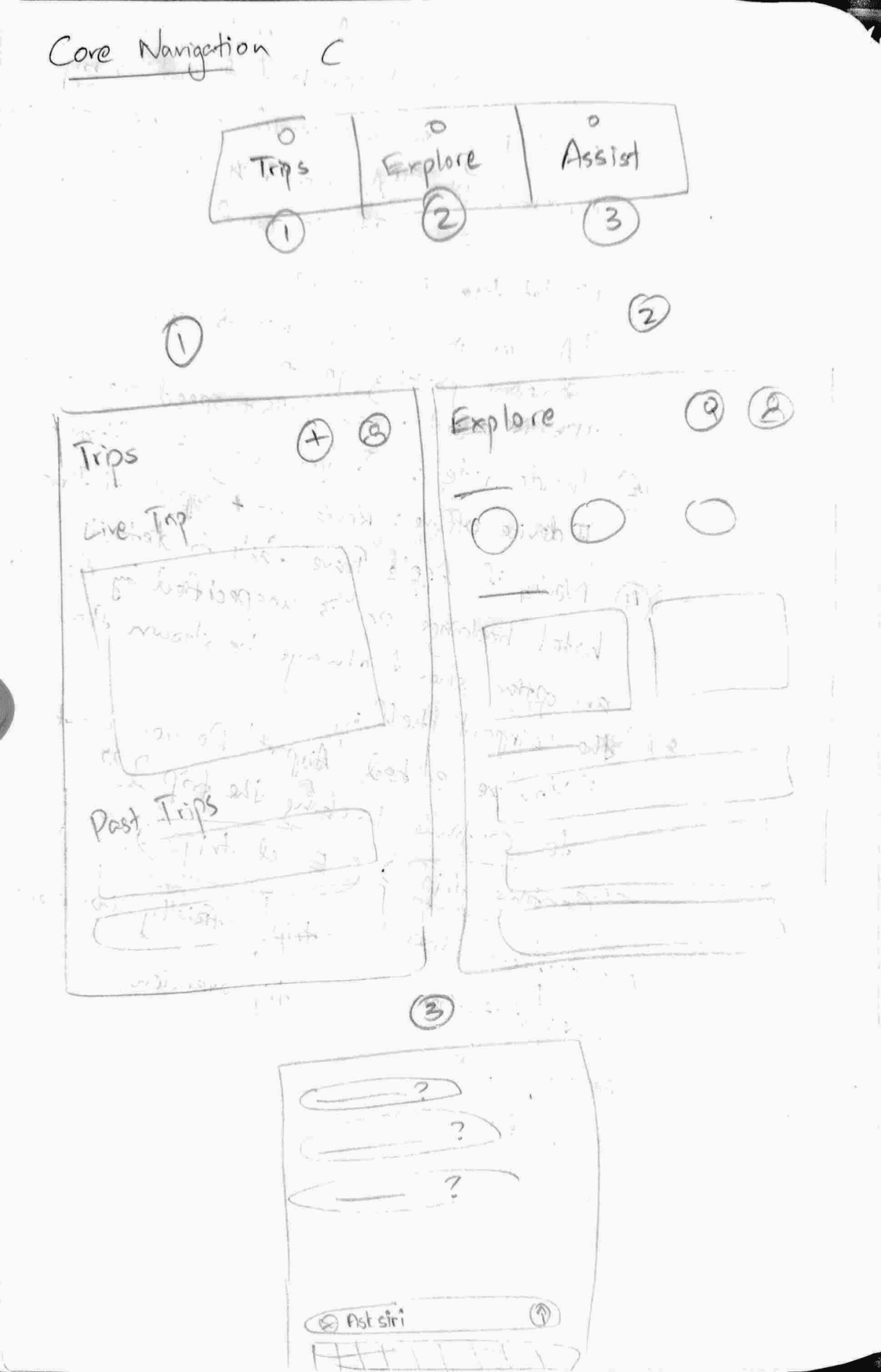
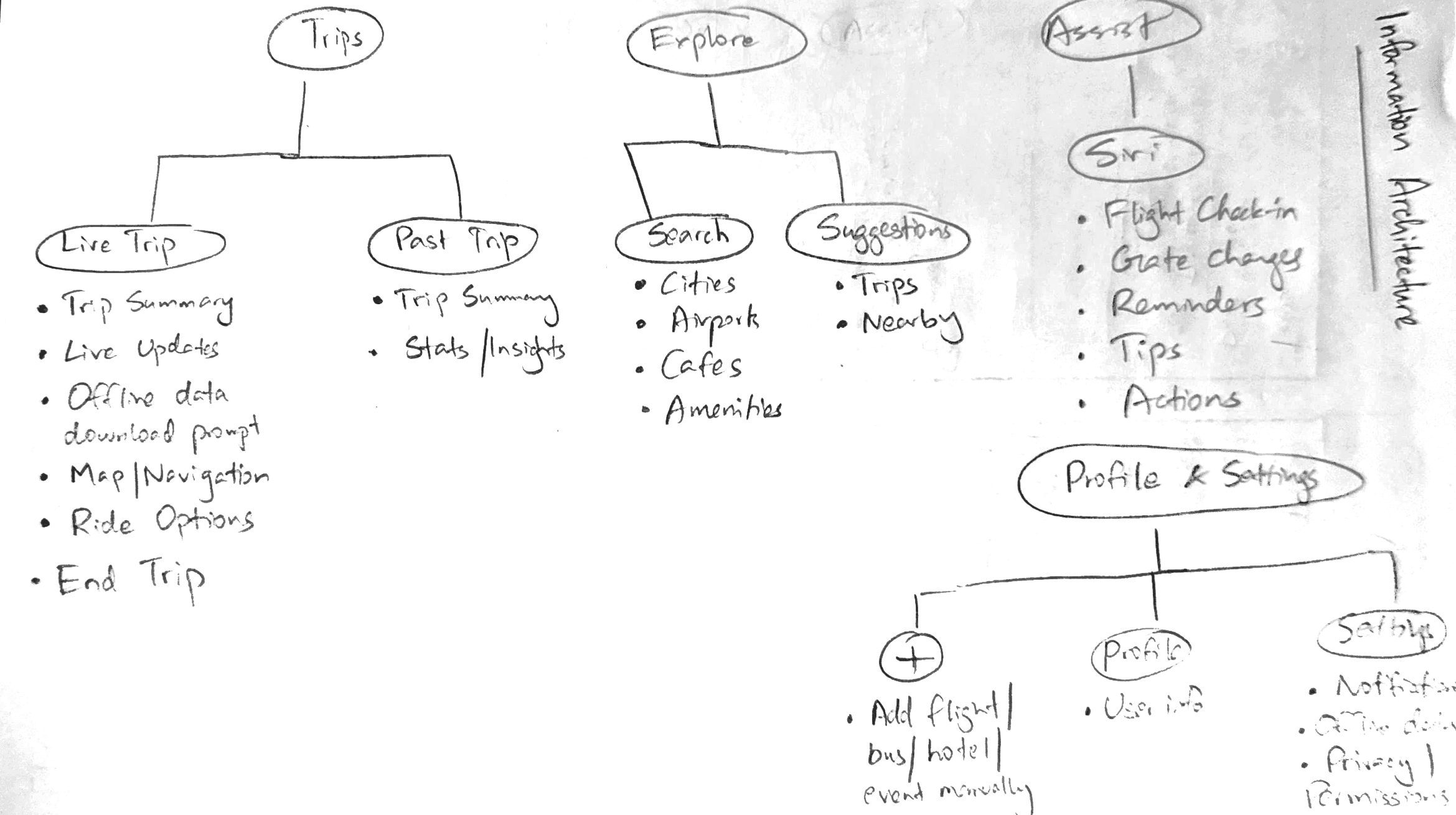
Early structure defining navigation and information hierarchy.
Drawing
It Out
With the structure in place, I began sketching the experience to think through how the product would actually be used during a trip. This phase was less about layouts and more about walking through real moments—checking details at a glance, moving through an airport, or reacting to changes along the way.
I sketched the core trip views first, focusing on what needed to stay visible during live travel versus what could live deeper in the experience. From there, I explored supporting needs that tend to surface mid-journey, like offline access, documents, notes, and quick actions, and considered when they should be available without adding distraction.
I also sketched notification states across iPhone and Apple Watch to understand how timely updates could support travelers without pulling them out of the moment. These explorations helped clarify what information should be surfaced proactively, and how glanceable interactions could reduce the need to constantly open the app.
Planning and discovery were treated differently from execution. Explore and setup flows were kept lightweight and flexible, while live travel surfaces were drawn to feel focused and reassuring. Sketching these scenarios helped validate that the system could support real-world travel without becoming overwhelming.
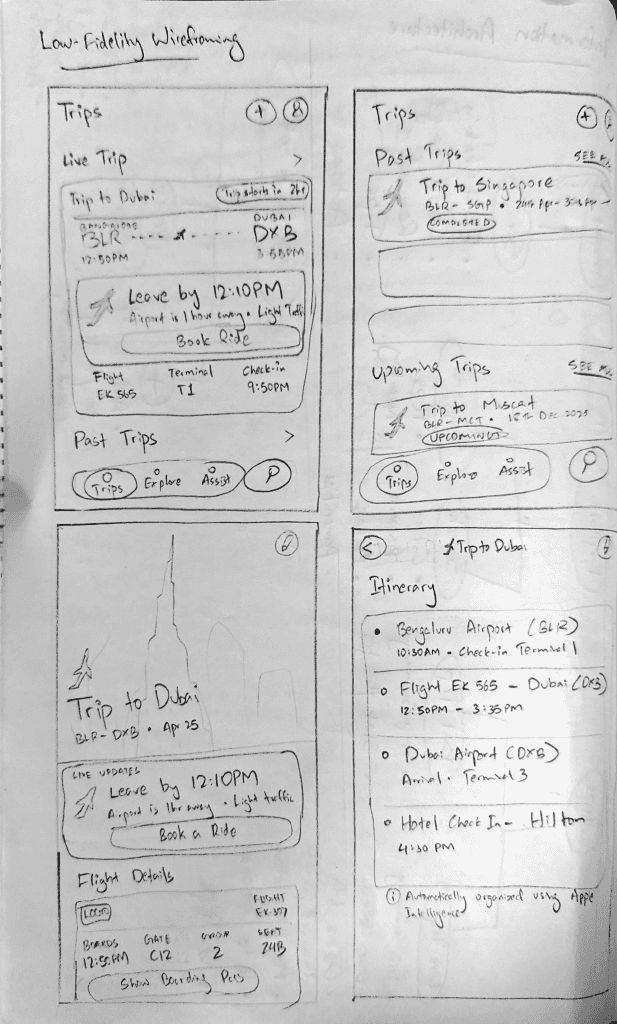
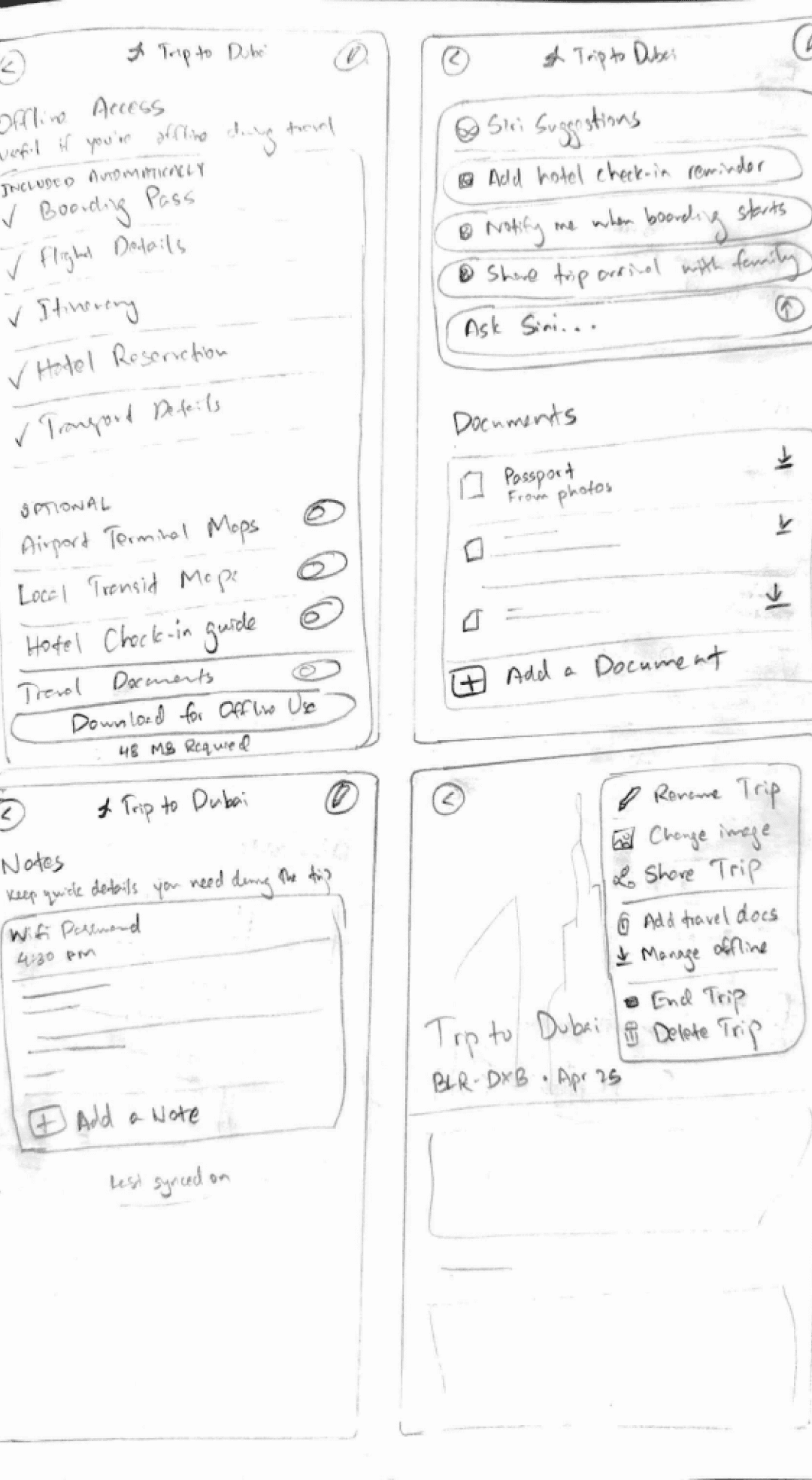
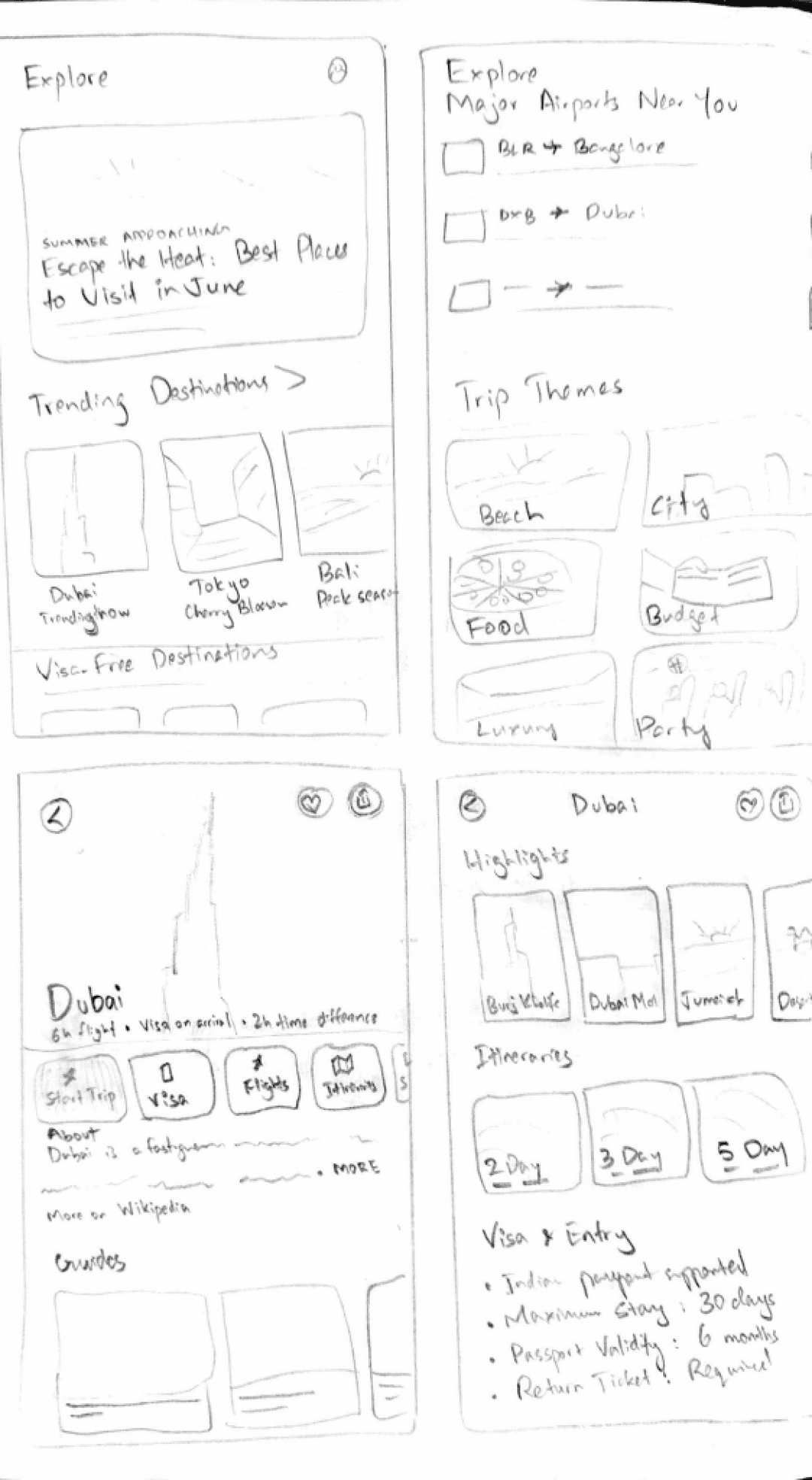
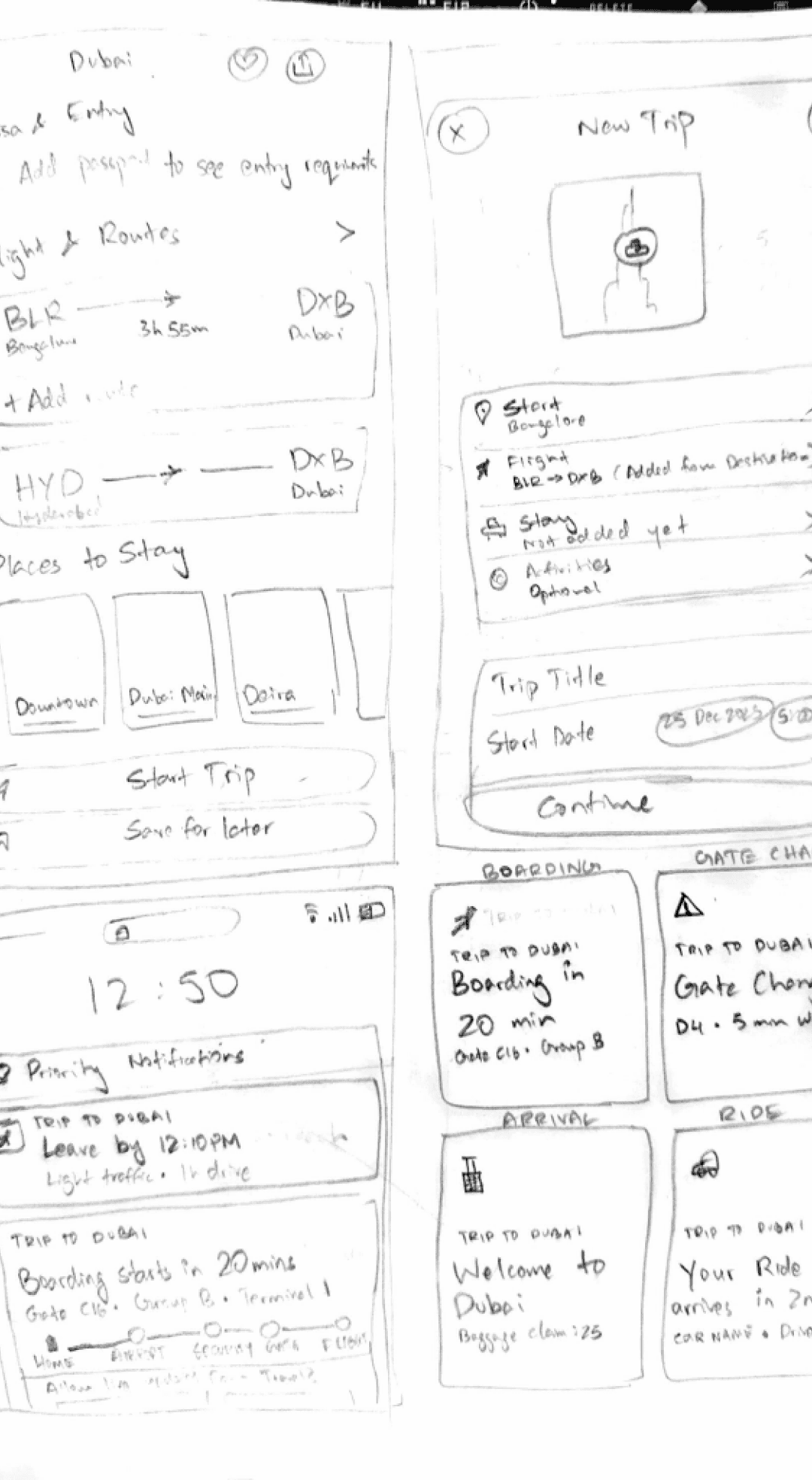
Low-fidelity wireframes used to think through travel states, flows, and real-world scenarios.
Rather than treating the interface as a collection of screens, I designed it as a set of focused surfaces that change based on where the traveler is in their journey.
1. Trips Home:
Entry Point to Active Travel
What this screen is about
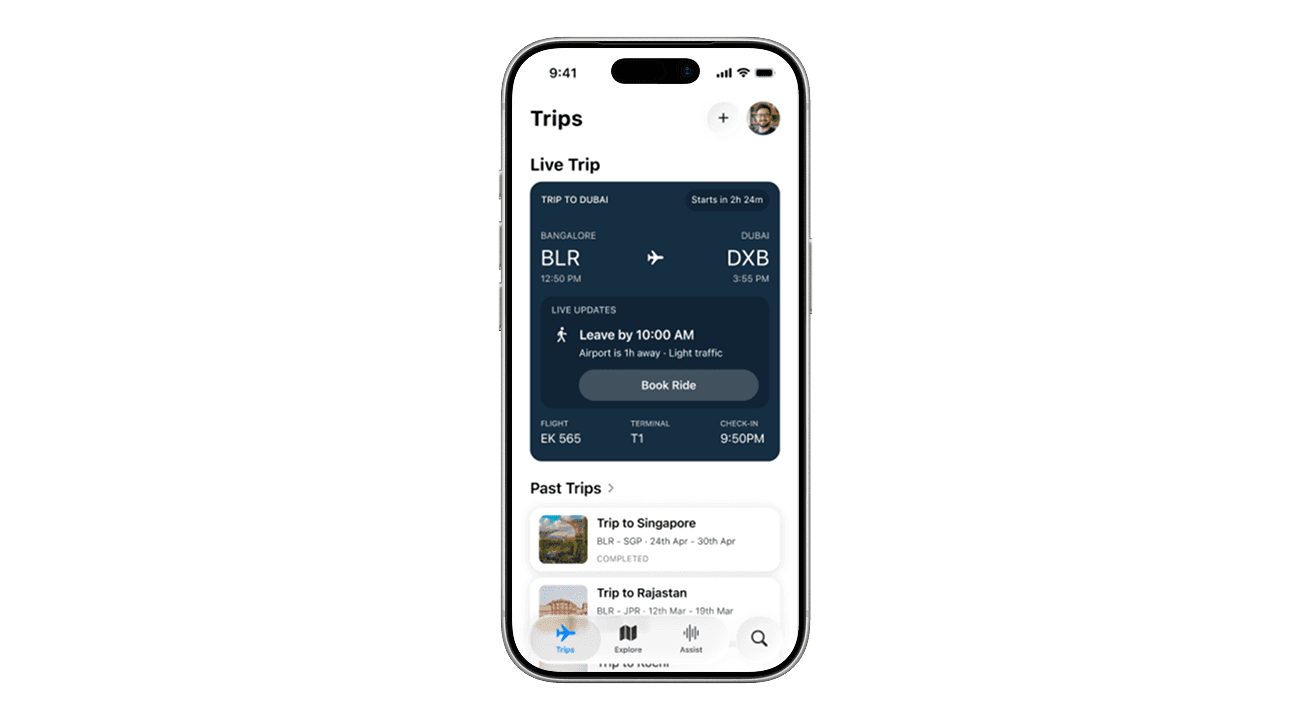
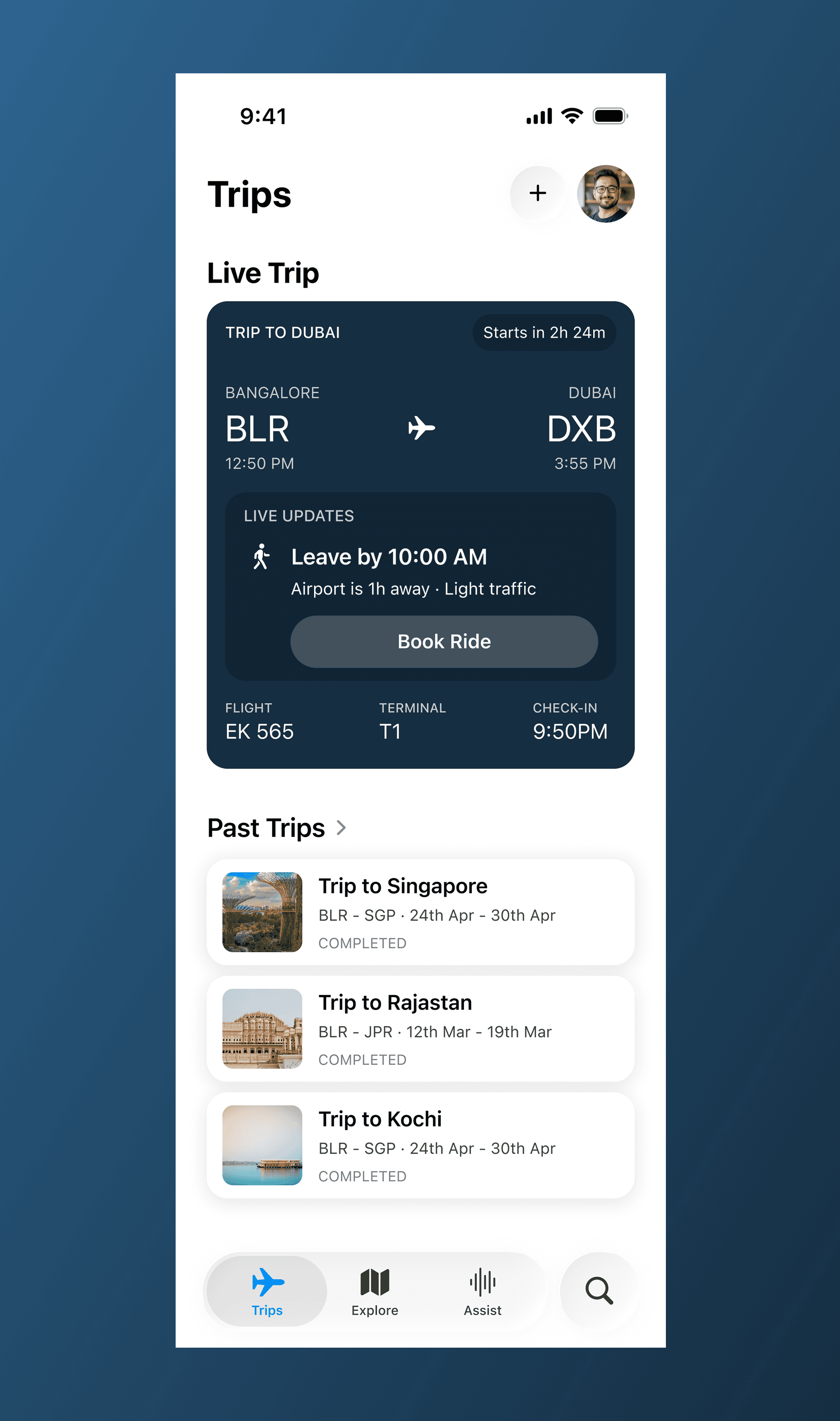
The Trips screen acts as the control center for Apple Travel. Instead of listing everything equally, it clearly separates what’s happening now from what has already happened.
The goal here was to reduce scanning effort and immediately pull attention toward the active journey.
I deliberately designed this screen so users don’t have to open their trip to understand what’s going on — the most important information is already visible at a glance.
Key decisions
Live Trip is always shown first and visually dominant
Past Trips are visually quieter and scrollable
Bottom navigation stays minimal to avoid competing with the Live Trip
No unnecessary CTAs — this screen is about awareness, not action
2. Live Trip Card:
Status + Instructions in One Surface
What this CARD is about
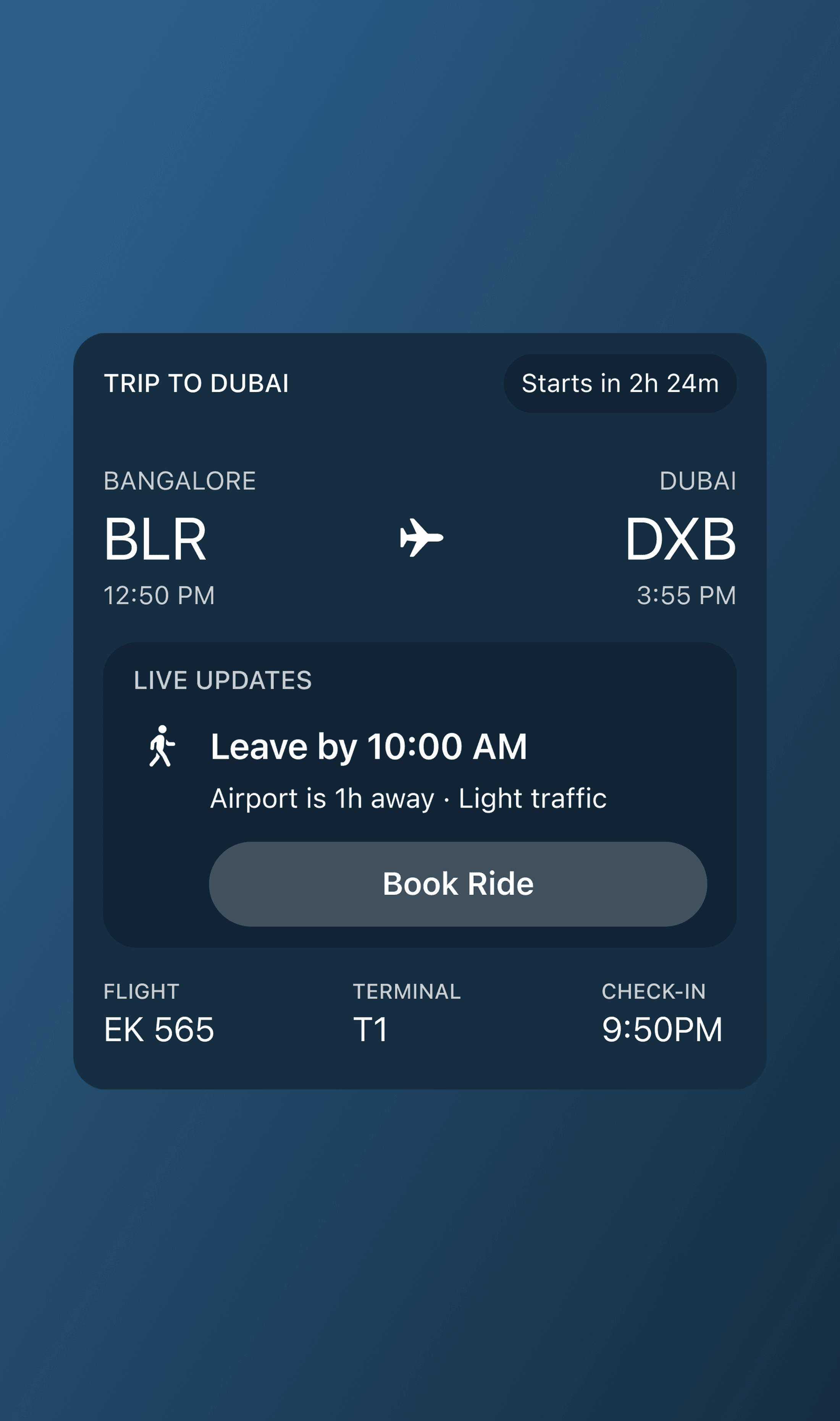
The Live Trip card is designed to behave like a status surface, not a traditional summary card.
It combines trip context and live instructions into a single, glanceable unit. The user should immediately understand:
Where they’re going
How soon something important happens
What they need to do next
Live Updates are not a separate concept here — they are intentionally embedded inside the Live Trip card to avoid fragmentation.
Key decisions
Large airport codes (BLR → DXB) for instant scanning
Time-based status pill (e.g. Starts in 2h 24m, Delayed · 45 min) to establish urgency
Live Updates section lives inside the card, not outside it
Instruction-first copy (“Leave by 10:00 AM”)
Secondary metadata (flight number, terminal, check-in time) pushed to the bottom
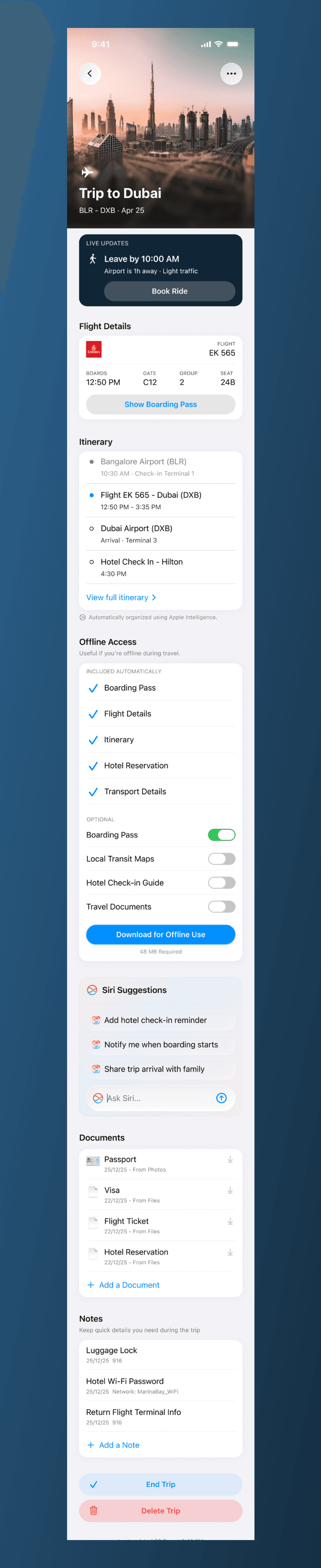
3. Live Trip (Detailed):
The Heart of the System
This screen represents the full Apple Travel philosophy:
calm during urgency, depth when needed.
3.1. Trip Identity
Making a Trip Feel Personal
What this section is about
When the user expands a live trip, the experience shifts from functional to immersive. Inspired by Apple Music’s album screens, the trip gets a visual identity, not just metadata.
Key decisions
When the user expands a live trip, the experience shifts from functional to immersive. Inspired by Apple Music’s album screens, the trip gets a visual identity, not just metadata.
Trips aren’t just logistics — they’re memories in progress.
3.2. Live Updates
Still the First Priority
What this section is about
In the expanded Live Trip view, Live Updates are intentionally shortened, not expanded.
Once the user opens the trip, the goal is no longer to repeat information — it’s to maintain clarity while making room for detail elsewhere.
Live Updates remain the primary action surface, but they don’t compete with flight details or the itinerary.
Key decisions
Live Updates are visually separated from Flight Details
The update stays single-purpose and concise
Still instruction-first (“Leave by 10:45 AM”), not descriptive
Context remains secondary and scannable
CTA persists only if the action is still relevant
3.3. Flight Details:
Familiar Patterns, Zero Learning Curve
What this section is about
Flight details intentionally reuse a pattern users already trust: Apple Wallet boarding passes.
During travel, familiarity is more valuable than novelty.
Key decisions
Flight details intentionally reuse a pattern users already trust: Apple Wallet boarding passes.
During travel, familiarity is more valuable than novelty.
3.4. Itinerary:
A System-First Timeline, Not a Planner
What this section is about
The itinerary inside the Live Trip is designed to be read-only by default.
Its job is not to let users plan — it’s to help them understand the flow of the trip at a glance.
This timeline reflects what Apple Travel knows right now, based on bookings, emails, and inferred context — not what the user manually curated.
Editing exists, but it’s intentionally de-emphasized here.
Key decisions
Timeline is system-generated, not user-authored
Items are ordered strictly by time
Current stage is visually highlighted
No inline editing or reordering in this view
A single, lightweight entry point to “View full itinerary”
3.5. Offline Access
Suggested, Not Forced
What this section is about
Offline access is handled proactively. Instead of a generic “Download Offline” button, the system suggests exactly what will be useful for this specific trip.
Key decisions
Relevant items pre-selected by default
Data size shown per item and total
Optional extras clearly separated
One clear CTA to download everything
3.6. Documents & Notes
Everything You Need, Nothing Extra
What this section is about
This section brings together important documents without trying to replace Files or Notes. The goal is availability, not management.
Key decisions
Familiar list layout inspired by Files / Notes
Clear source labels (Mail, Photos, Files)
Download indicator for cloud-only items
Quick add for documents and notes
4. Itinerary Editing:
Control Without Disrupting
the Trip
What this SCREEN is about
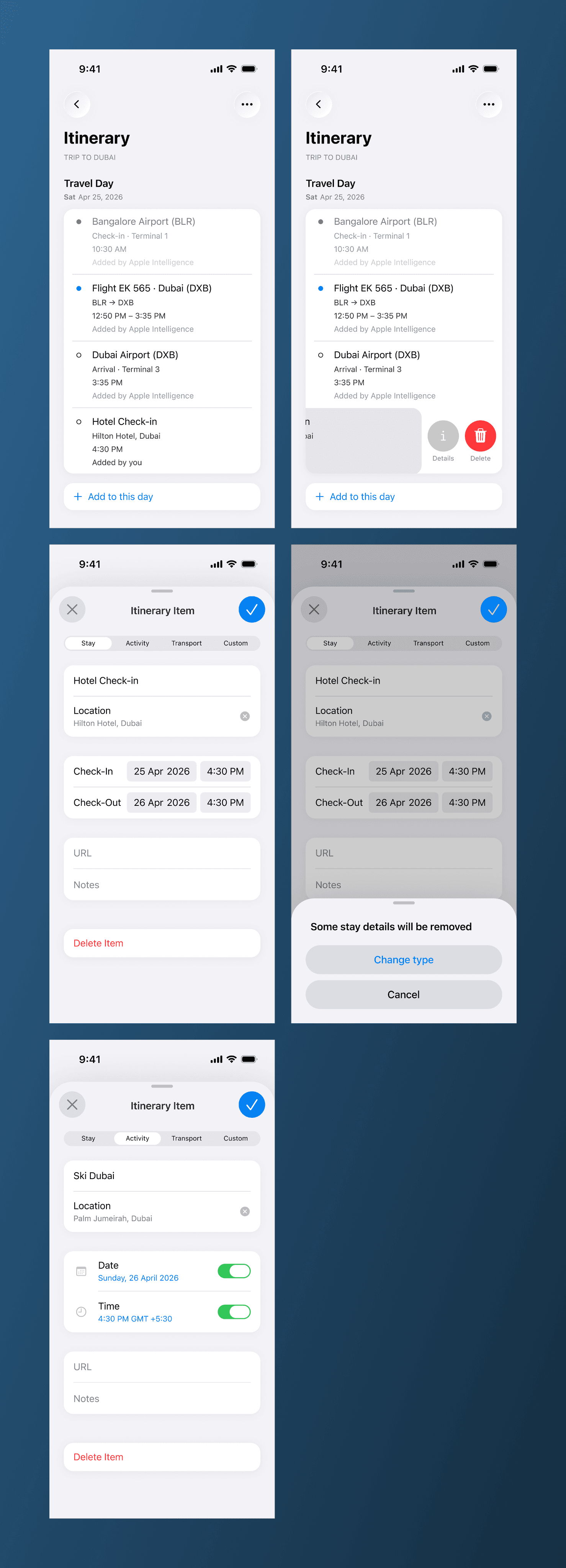
Travel systems aren’t always reliable.
Gate changes, seat updates, and timing shifts don’t consistently propagate across apps — especially when live airline APIs aren’t available. Instead of assuming perfect data, Apple Travel is designed to fail gracefully.
The Itinerary Detail screen acts as a fallback layer, allowing users to manually adjust trip details when the system can’t update them automatically.
This ensures users are never blocked just because the data source is incomplete or unavailable.
Key decisions
Itinerary editing lives in a dedicated Itinerary Detail screen, accessed intentionally via View full itinerary
Live Trip remains read-only, focused on situational awareness rather than editing
System-generated itinerary items are editable when required, especially in cases where airline or travel APIs are unavailable
Manual edits are clearly distinguished from system-inferred data to avoid confusion
User changes act as overrides, not silent replacements, and can be revised later
Item edit screens adapt based on type (Stay, Activity, Transport, Custom)
Changing key details or item type clearly communicates potential data loss
Rather than assuming perfect integrations, Apple Travel is designed around real travel behavior — where users often rely on screenshots, notes, or memory when systems fail.
By supporting manual overrides for system-generated items, the product remains useful even without full API coverage.
Automation helps when it works.
User control exists for when it doesn’t.
5. Editing & Managing the Trip:
Power Without Noise
What this screen is about
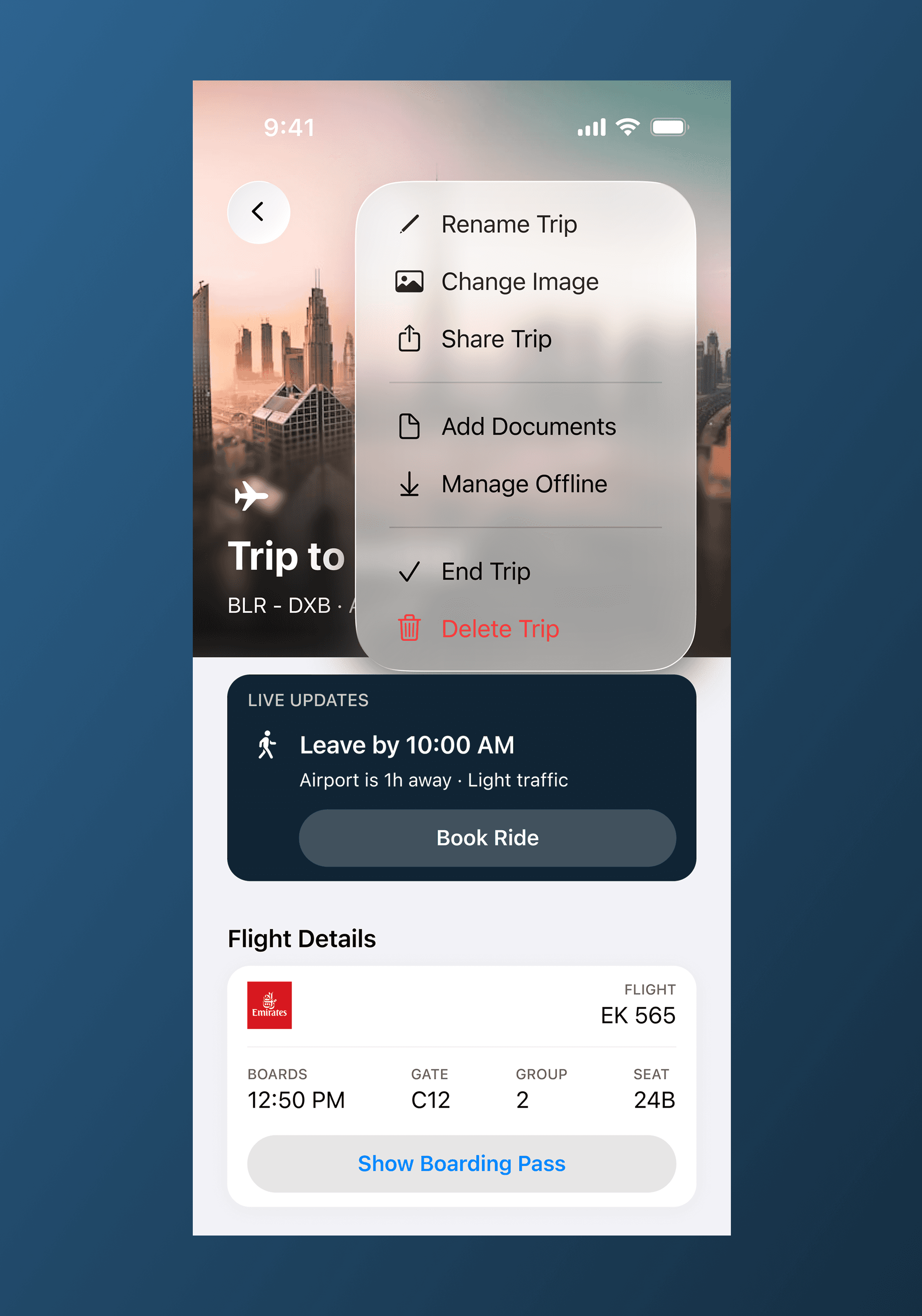
Trip management follows the same mental model as Apple Music playlists. Instead of exposing controls everywhere, actions live behind an overflow menu.
This keeps the primary experience clean, especially during travel.
Key decisions
Trip management follows the same mental model as Apple Music playlists. Instead of exposing controls everywhere, actions live behind an overflow menu.
This keeps the primary experience clean, especially during travel.
6. Explore
Inspiration Without Commitment
What this SCREEN is about
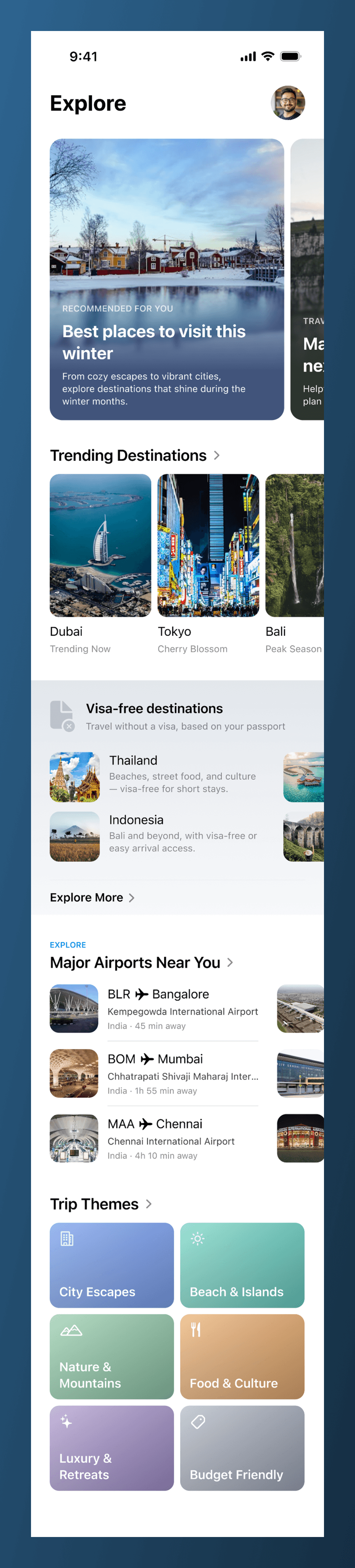
Explore is not a trip planner. It’s a curiosity surface.
The goal here is to let users browse destinations without forcing decisions too early — no dates, no routes, no setup. This is where travel starts emotionally, not logistically.
Instead of overwhelming users with filters, Explore focuses on entry points: seasons, themes, visa ease, and proximity.
Key decisions
Content is grouped by mental shortcuts, not exhaustive lists
Seasonal suggestions (“Best places to visit this winter”) reduce decision fatigue
Trending destinations surface social relevance without rankings
Visa-friendly destinations shown early to remove planning friction
Airports near you included to anchor exploration in reality
No “Start Trip” CTA on this screen — exploration stays lightweight
This screen is intentionally low-pressure. Users can scroll, save, or leave without committing.
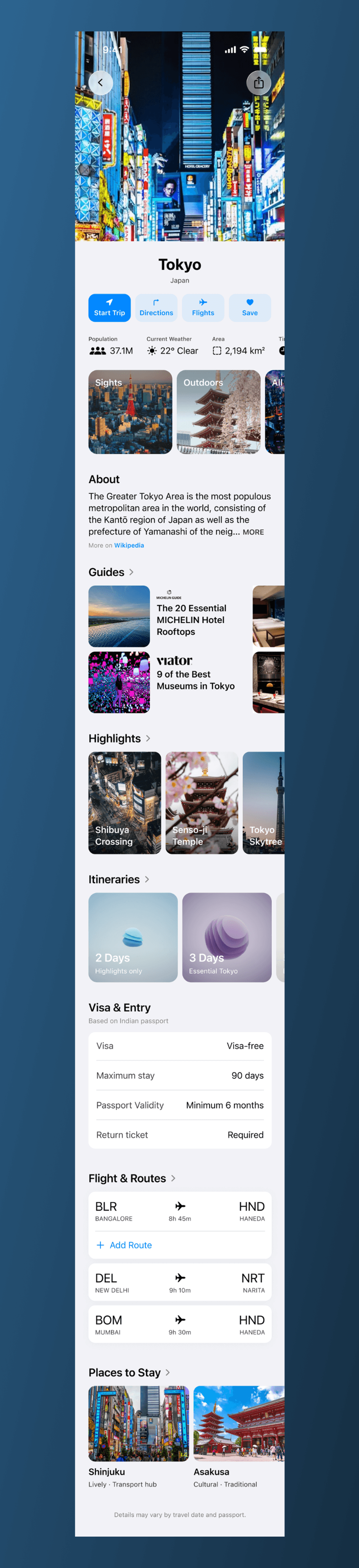
7. Explore (Detailed):
From Inspiration to Understanding
What this screen is about
The Explore Detailed screen answers the question:
“What would it actually be like to go here?”
This is where inspiration turns into context — without jumping straight into booking or planning.
Instead of collapsing everything into one long description, the destination is broken into scannable, meaningful sections.
Key decisions
Full-bleed hero image to establish emotional context immediately
Quick actions (Start Trip, Directions, Flights, Save) placed under the title
Inline facts (weather, currency, time difference, area) shown early
Guides and highlights come before logistics — sell the place first
Itineraries shown as abstract concepts, not rigid plans
Visa & entry placed near the bottom, once interest is established
Flights and stays are suggestions, not defaults
8. Starting a New Trip
Planning Without Overwhelm
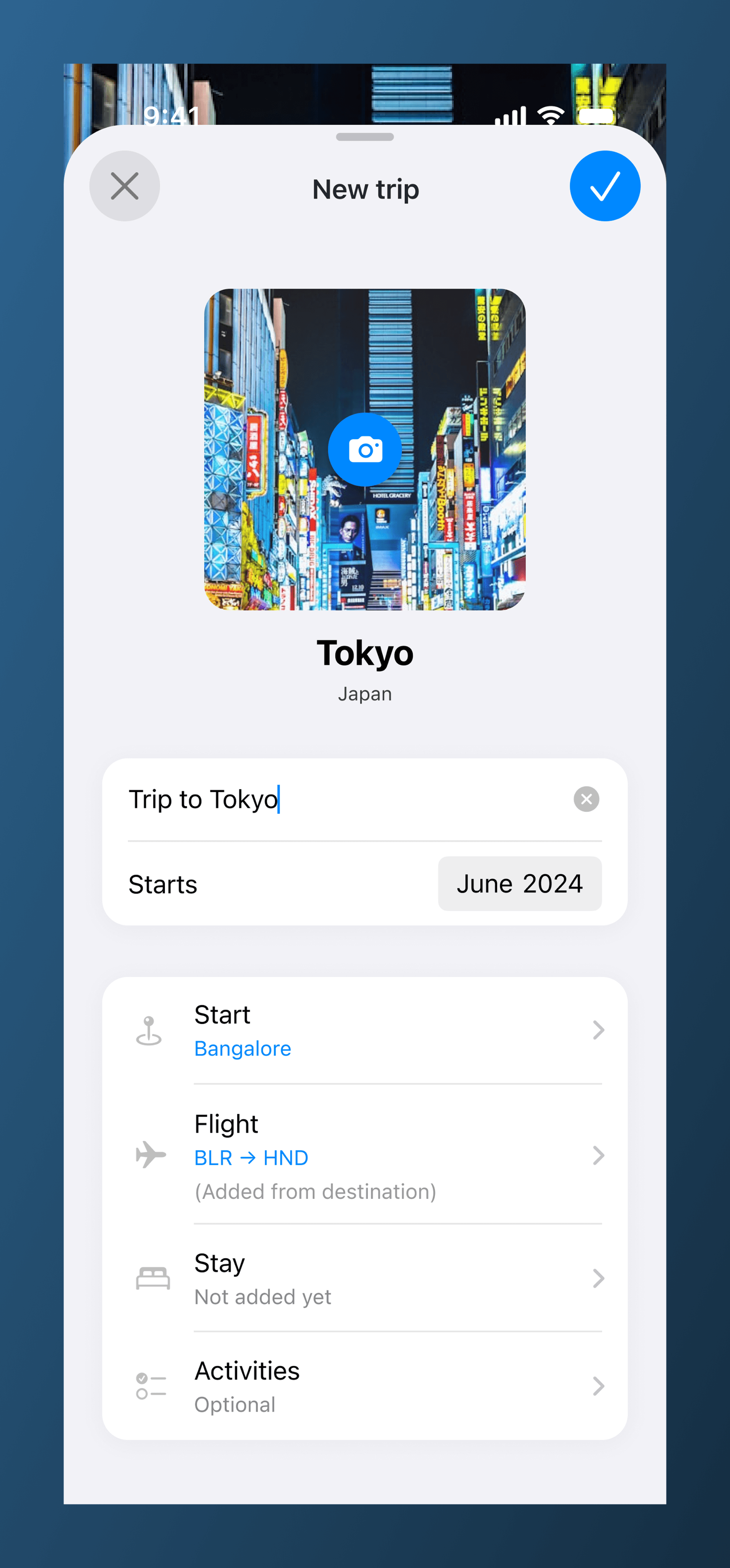
What this SCREEN is about
Starting a new trip should feel lightweight, not like filling a form.
Instead of asking users to define everything upfront, Apple Travel starts with just enough structure and lets the trip evolve naturally.
This screen acts as a confirmation of intent, not a setup wizard.
Key decisions
Destination is pre-filled from Explore to reduce repetition
Trip title is editable but optional
Start date is the only required input
Start location inferred but editable
Flight is suggested when available, clearly labeled as system-added
Stay and activities are optional at this stage
No hard blockers — users can proceed even with incomplete info
Planning doesn’t happen all at once. This screen respects that.
8. Completed Trip
Closing the Loop, Not Just the Journey
What this SCREEN is about
This screen represents the moment after the trip ends. Instead of letting the experience fade, the design helps users reflect, revisit, and reuse their travel memories. It transforms a finished trip into a reusable resource — a record of experiences, not just logistics.
The goal here was to make the end of a journey feel meaningful and actionable. Users can review what they did, share it with others, duplicate it for future trips, or simply relive their memories. This creates a sense of continuity, encouraging users to come back to the app even after the trip is complete.
Key decisions
The trip header shifts from urgency to reflection, using immersive imagery to evoke memory
The summary section surfaces key highlights (duration, distance, activities, stay) for quick recall
The itinerary becomes a chronological narrative rather than a task list
The gallery appears as a visual memory strip, reinforcing emotional recall
Actions like Share, Duplicate, and Delete are placed at the bottom to support post-trip needs
The experience moves from functional to emotional, reinforcing long-term product value

Notifications &
Lock Screen Presence
Travel doesn’t happen inside an app — it happens while the phone is locked, in the pocket, or glanced at for a second. For Apple Travel, notifications aren’t alerts to open the app; they are the product during critical moments.
I designed notifications to mirror the Live Trip card itself — same hierarchy, same language, same confidence. Whether it’s time to leave, boarding about to start, or a delay update, the user should understand what’s happening without unlocking the phone.
The goal here was simple: zero panic, zero ambiguity.
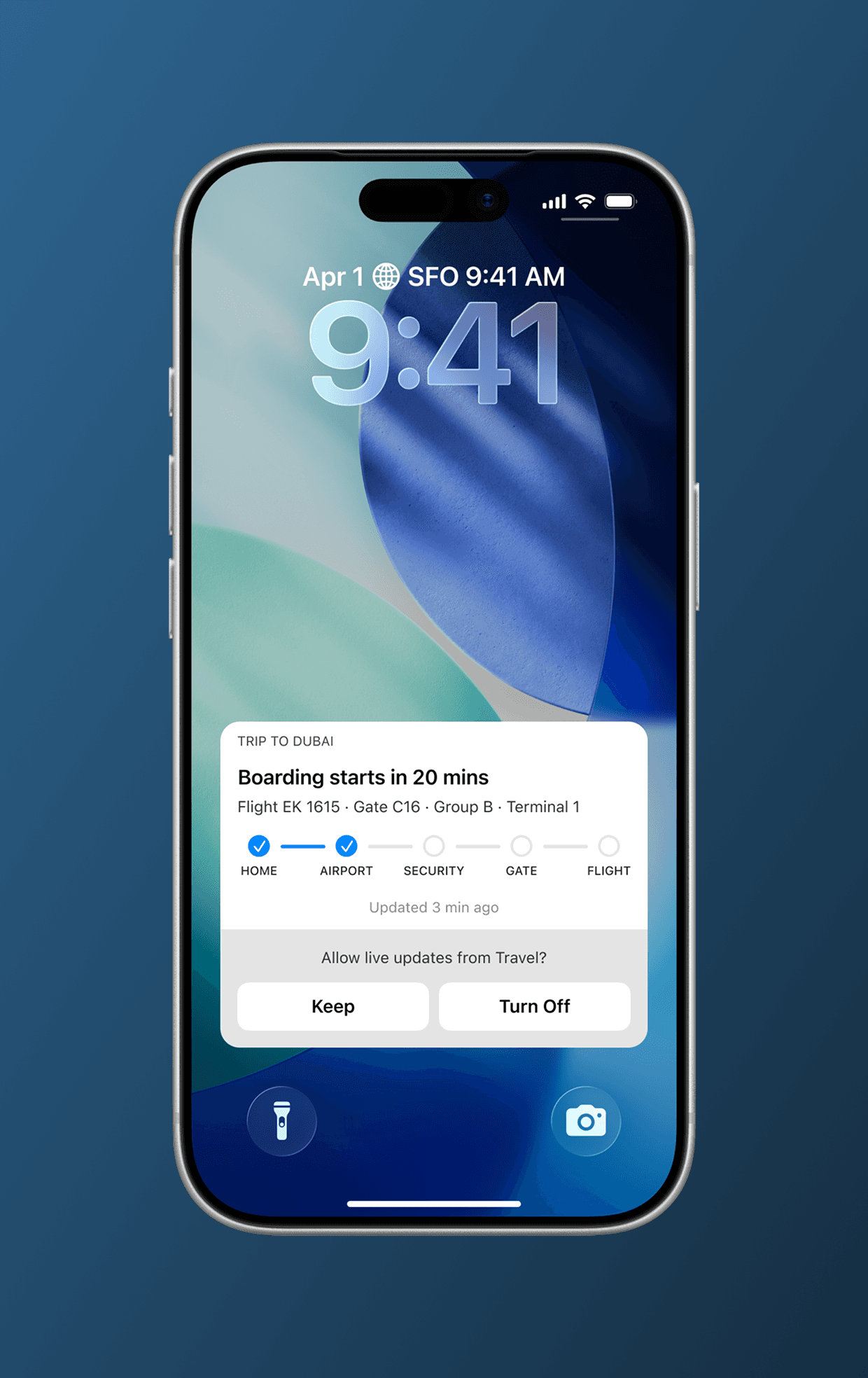
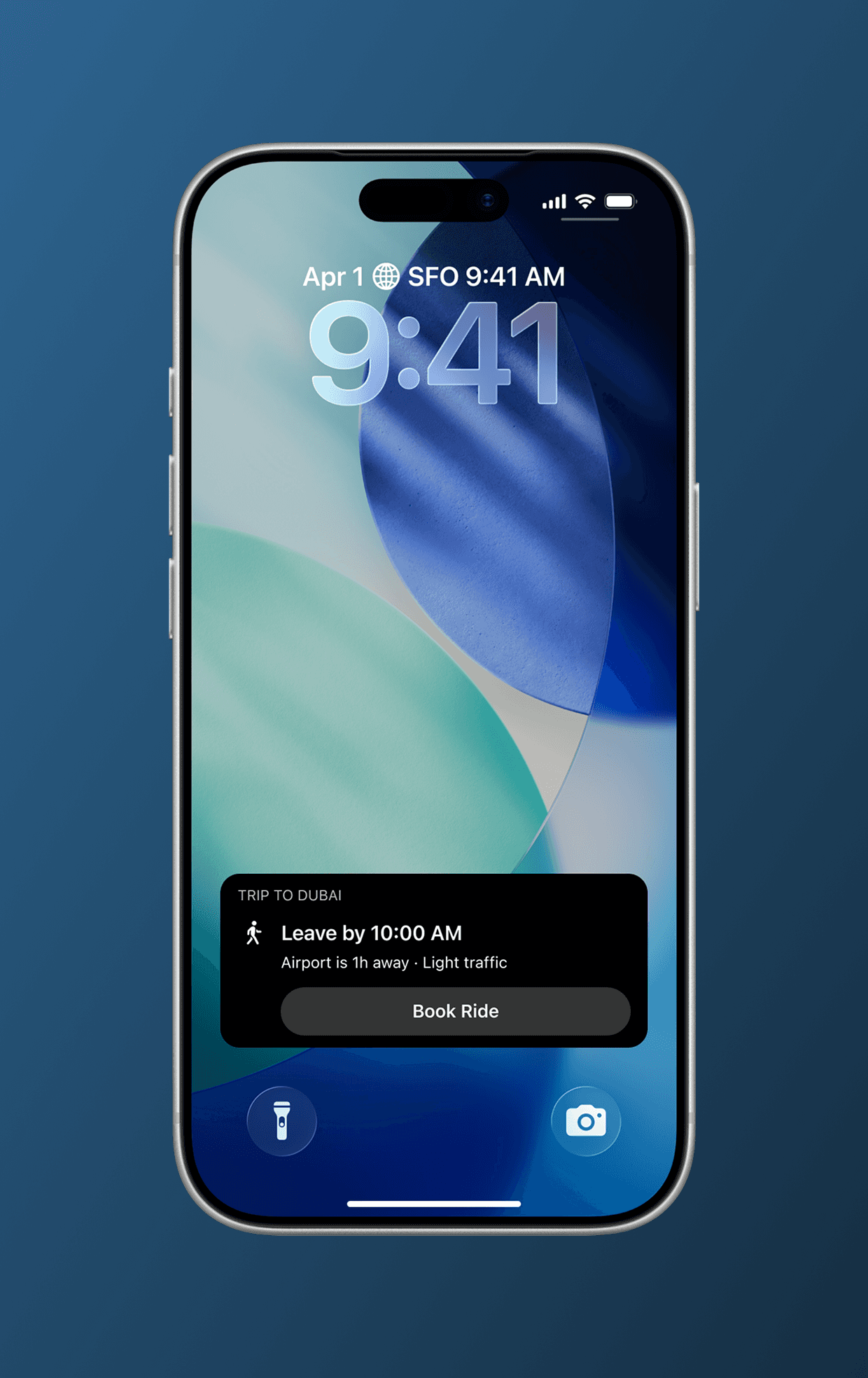
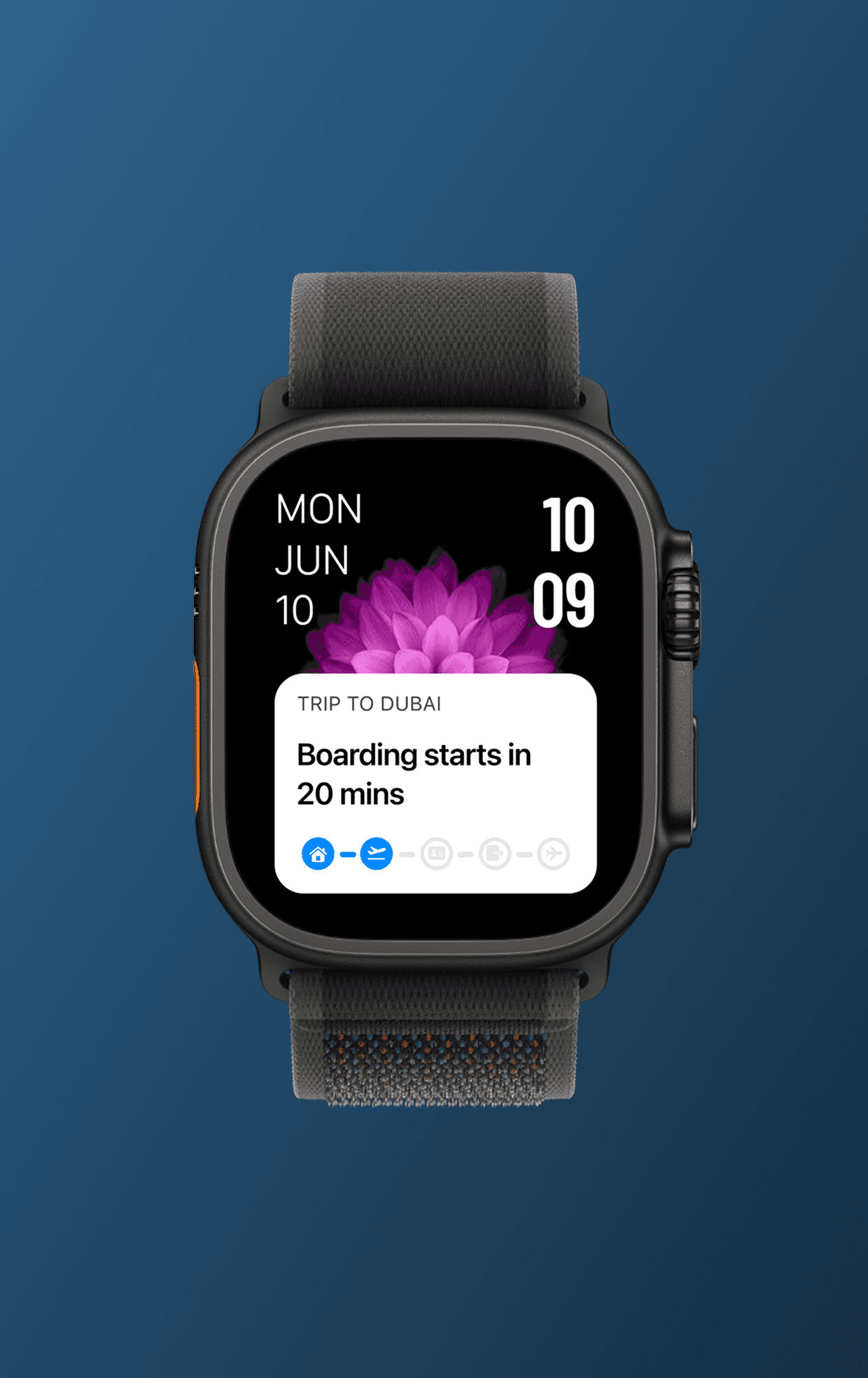
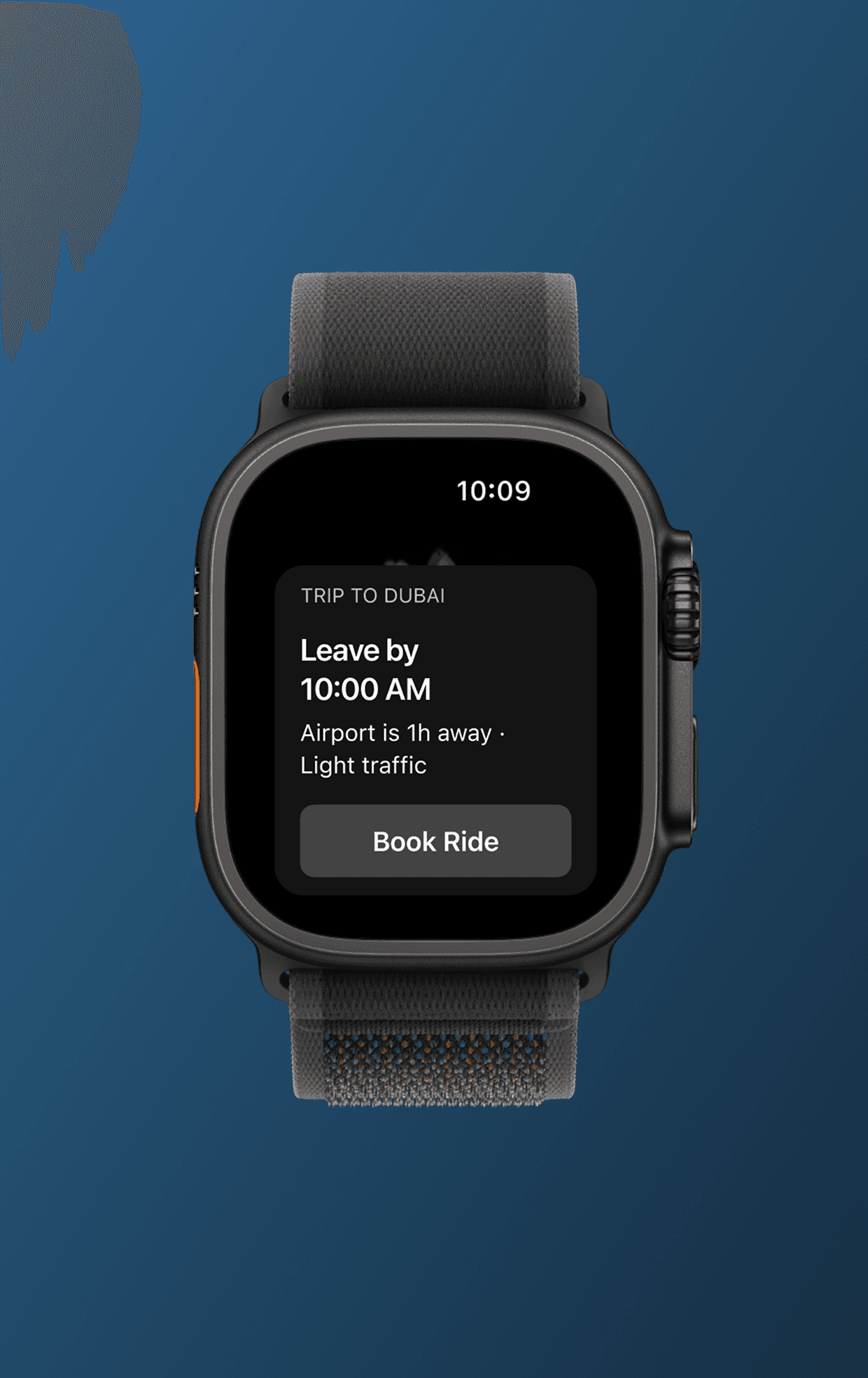
Live trip updates delivered directly on the Lock Screen and Apple Watch.
Edge Case:
Flight Delay
Delays are stressful not because they happen — but because information arrives late, fragmented, or unclear. In this scenario, Apple Travel shifts from guidance mode to reassurance mode.
Instead of pushing raw airline messages, the system reframes the delay in human terms: what changed, how much time was added, and whether the user needs to act right now. The UI intentionally avoids urgency unless it’s required.
The experience stays consistent across the app, lock screen, and Apple Watch — the message changes, not the interface.
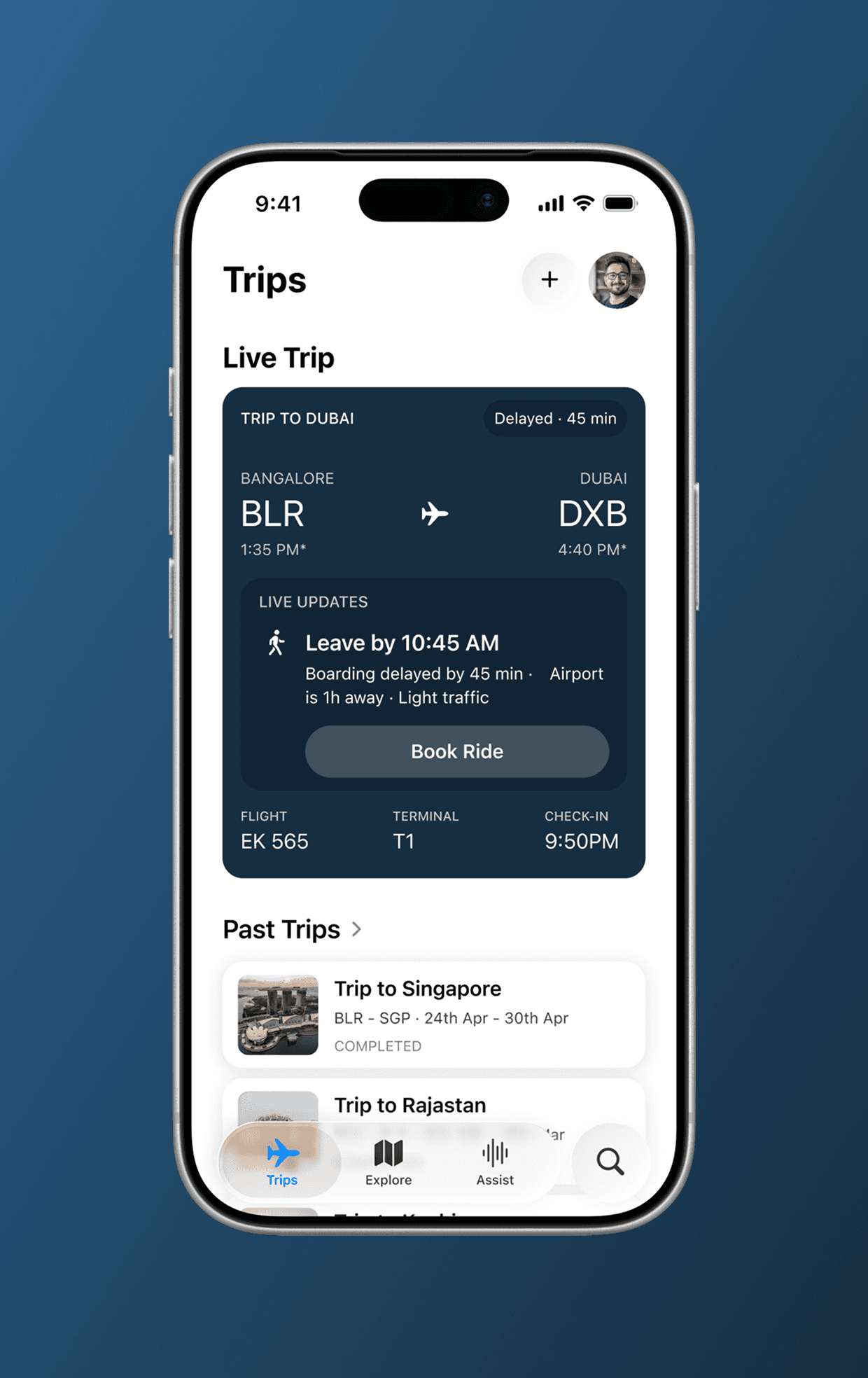
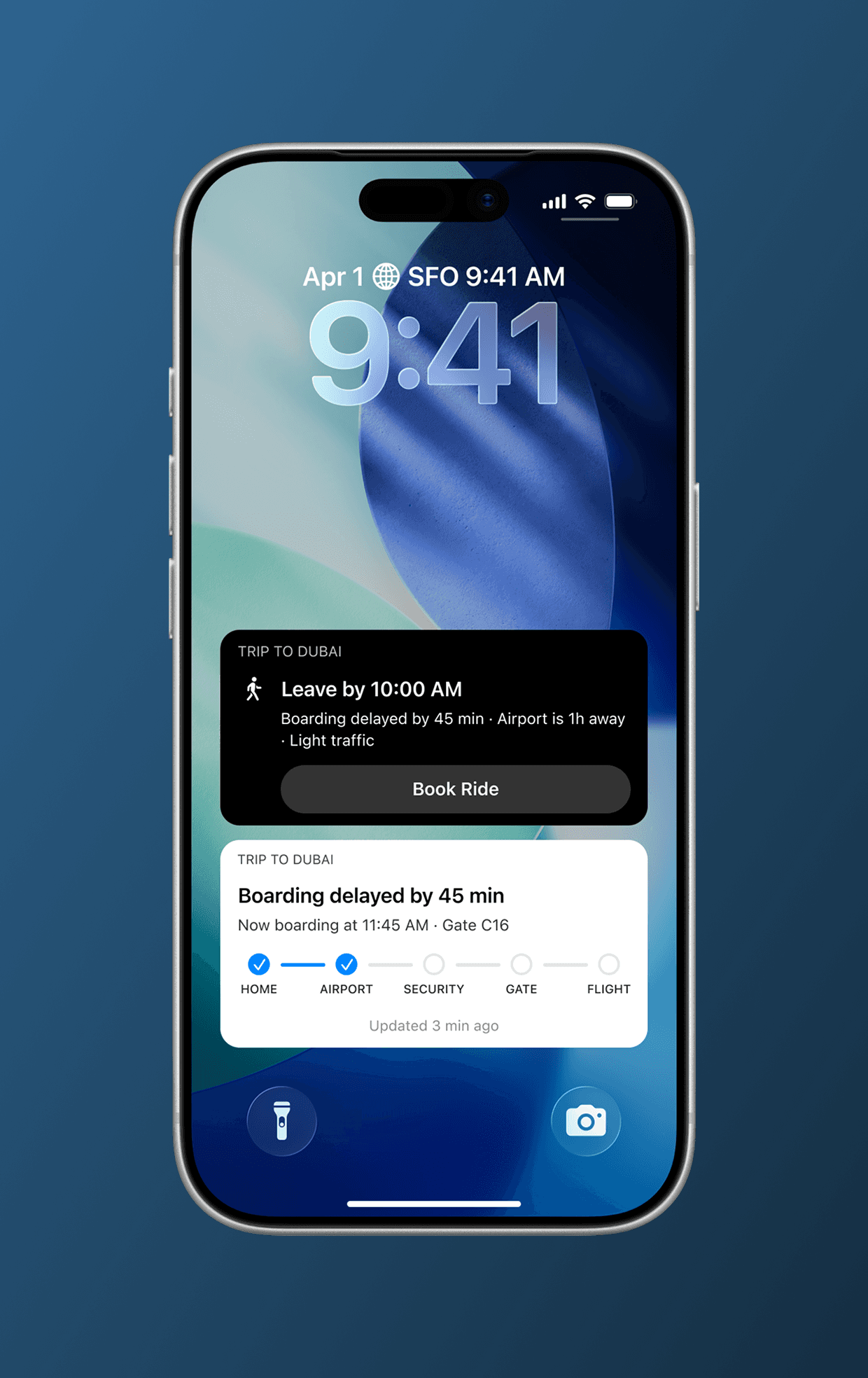
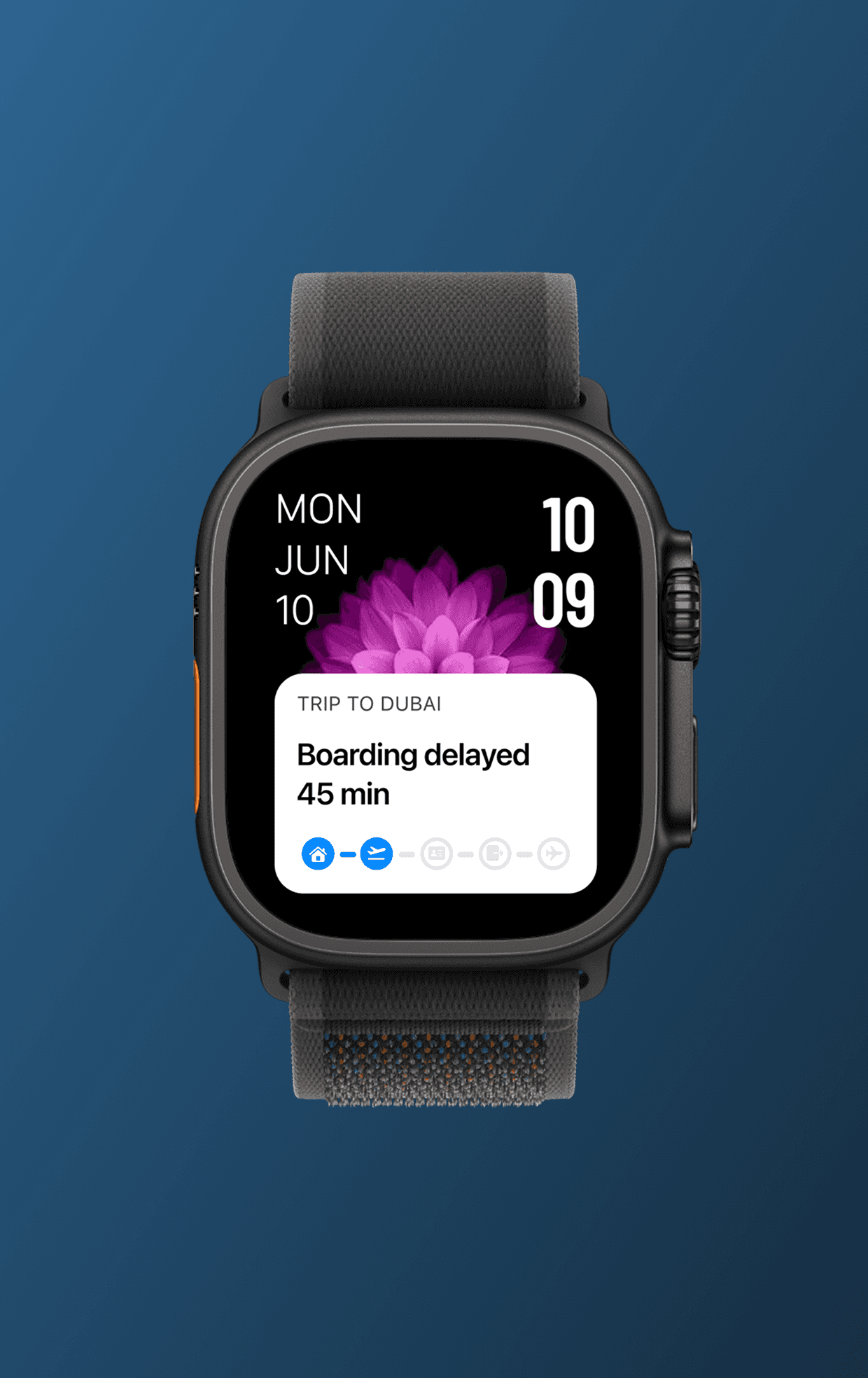
Information changes without changing the experience.
Edge Case:
Flight Cancellation
A cancellation is a hard stop — the trip can’t continue as planned. In this state, Apple Travel deliberately removes passive guidance and replaces it with clear recovery paths.
Instead of overwhelming the user with options, the interface focuses on what can be done next: viewing alternatives, checking updated itinerary items, or taking action later. This keeps the user oriented, even when the plan collapses.
Importantly, the tone stays calm and factual — no red panic UI, no emotional language.
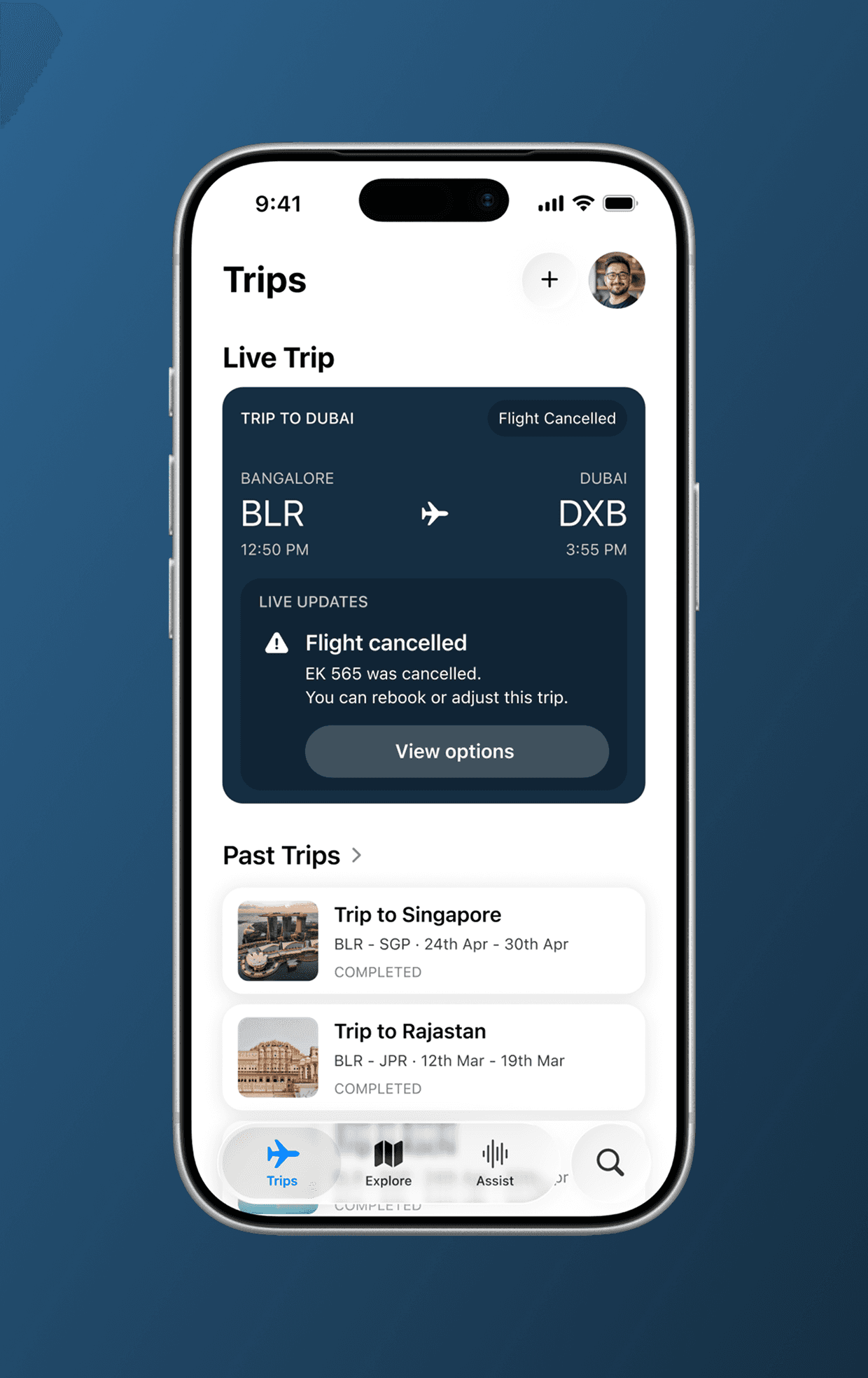
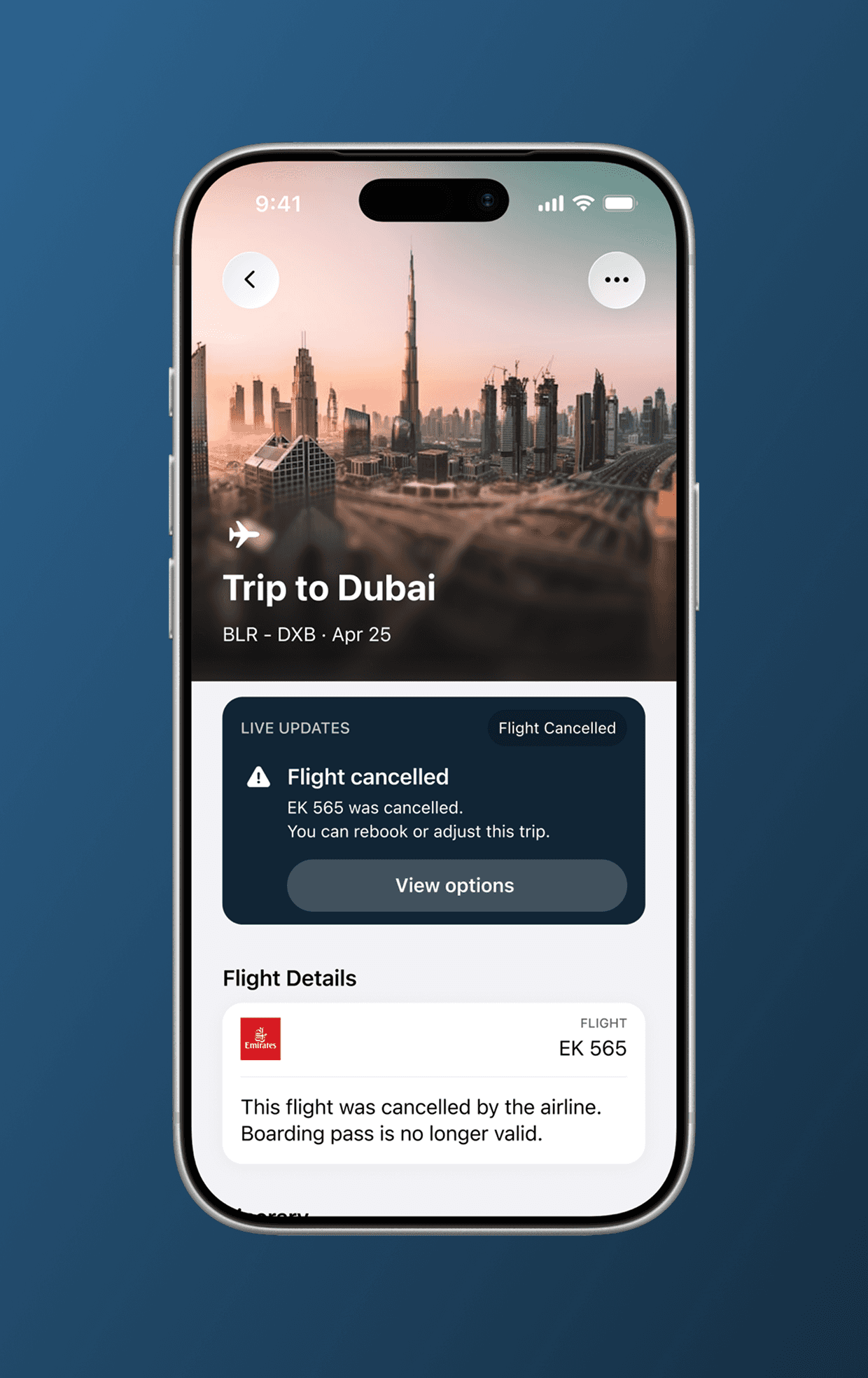
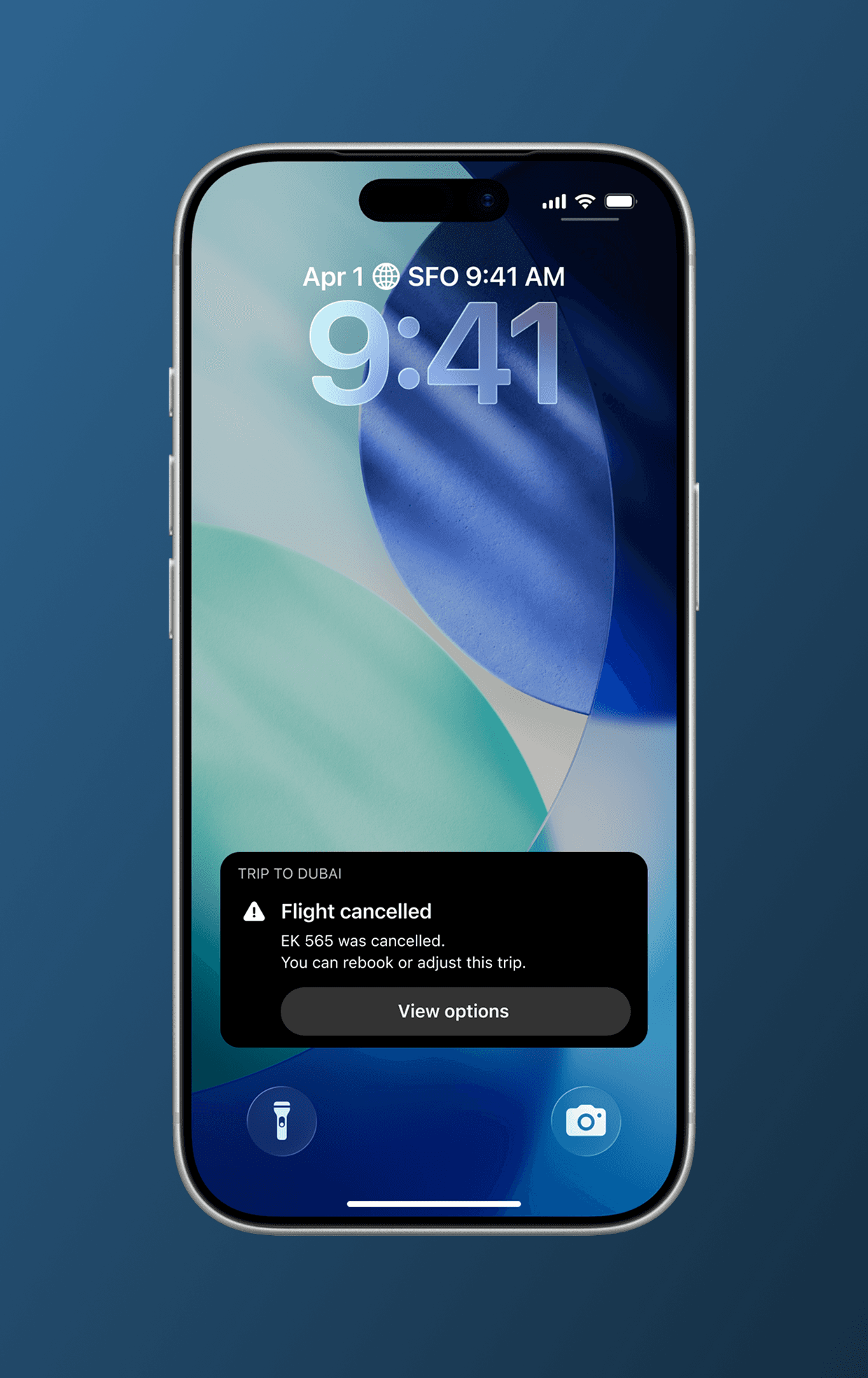
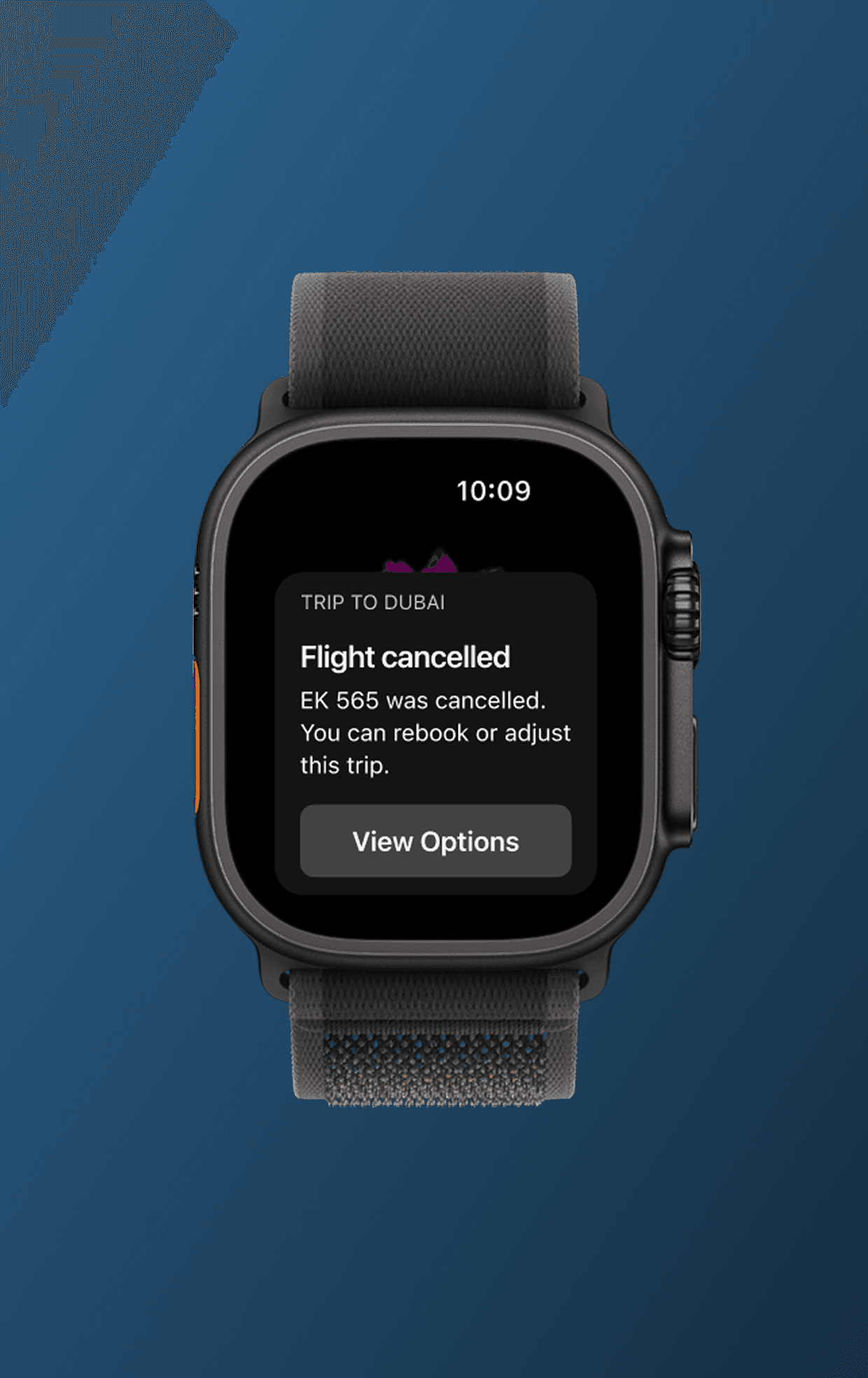
When the journey stops, the interface pivots to recovery.
Travel doesn’t always happen in perfect lighting. Most critical moments—late-night departures, early morning arrivals, lock-screen glances—happen in low-light environments. Apple Travel is designed with dark mode as a first-class experience, not a color inversion.
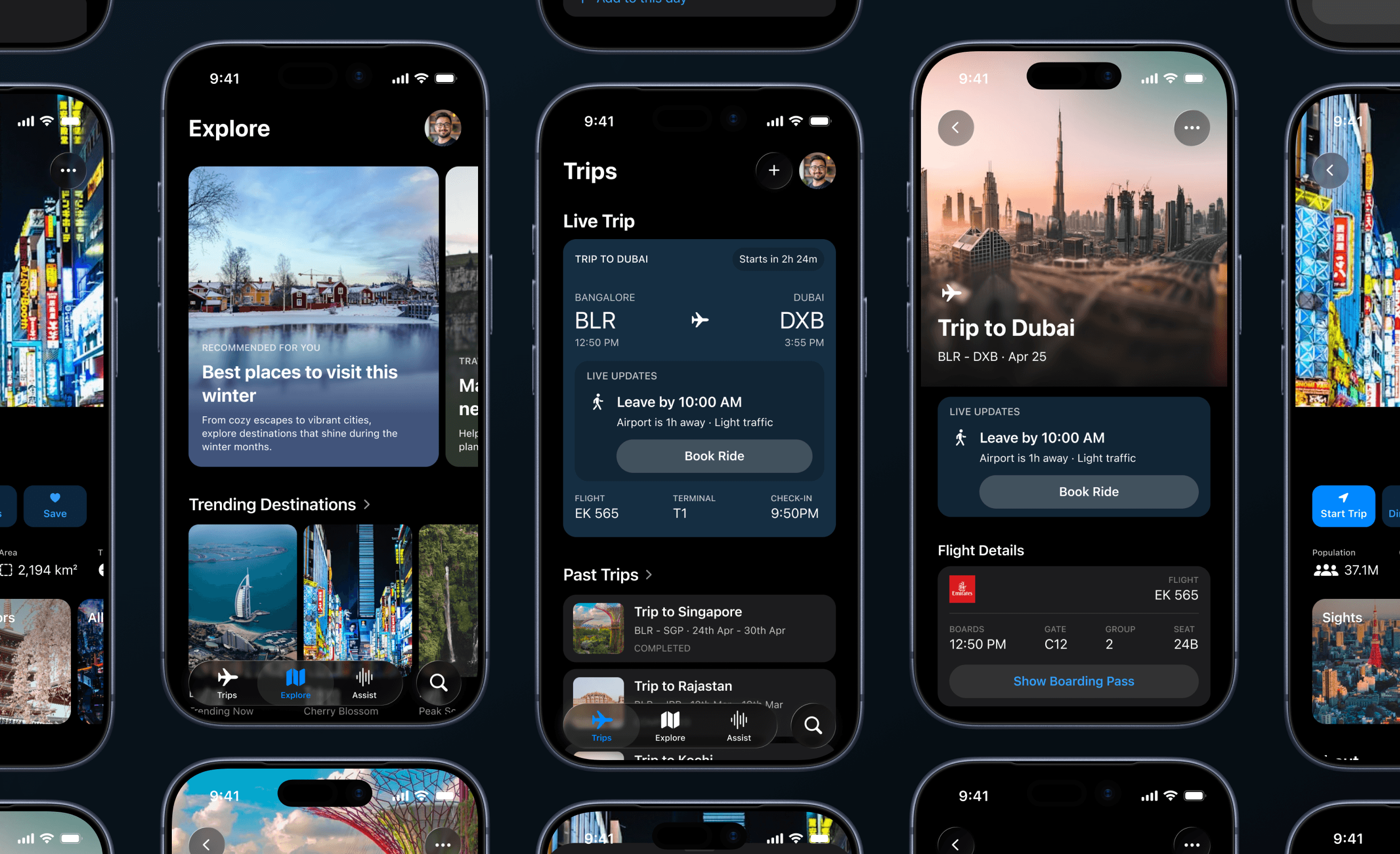
Design decisions in motion—layouts, iterations, and structure as they evolved.
Expected
Impact
While this project wasn’t shipped or tested at scale, it was designed with clear behavioral outcomes in mind—based on existing Apple interaction patterns, human-factors principles, and real travel constraints.
1. Reduced cognitive load during travel
By surfacing only what matters in the moment, users don’t have to jump between airline apps, Wallet, Maps, and notes to understand what to do next.
2. Action-first guidance, not passive updates
Live updates are framed as clear instructions (leave, move, wait), so users act confidently instead of decoding raw flight data.
3. Reliability even when systems fail
When airline or airport data doesn’t update correctly, users can manually edit itinerary items — avoiding stale gates, wrong times, or dead ends.
4. Calmer handling of disruptions
Delays, gate changes, and cancellations are treated as expected states, with clear next steps instead of generic alerts.
5. Trust through familiar Apple patterns
Reusing Wallet, Maps, and Reminders mental models reduces learning and increases confidence in high-stress moments.
Closing
Thoughts
Travel is full of uncertainty, transitions, and waiting—often when users are tired, rushed, or distracted. This project challenged me to design for those moments, not ideal ones.
Apple Travel is less about planning perfectly and more about feeling supported when plans change. The experience is designed to stay present when needed, and invisible everywhere else.
Related
Work

VIEW ALL